Look natural from the first shot: MOAI Beauty Camera
Retouching is on the moment the camera opens. Pick a look, take the shot and fine-tune it in the detailed editor.
MOAI Beauty Camera shoots photos and videos with live face retouching, makeup and filters, and retouches album photos — face shape, skin and makeup. 597 beauty options and one-tap Glam looks.
Choosing the Idol lipstick in the Beauty editor and holding the compare button to see the original lips on a fictional adult portrait. Sample content shown.
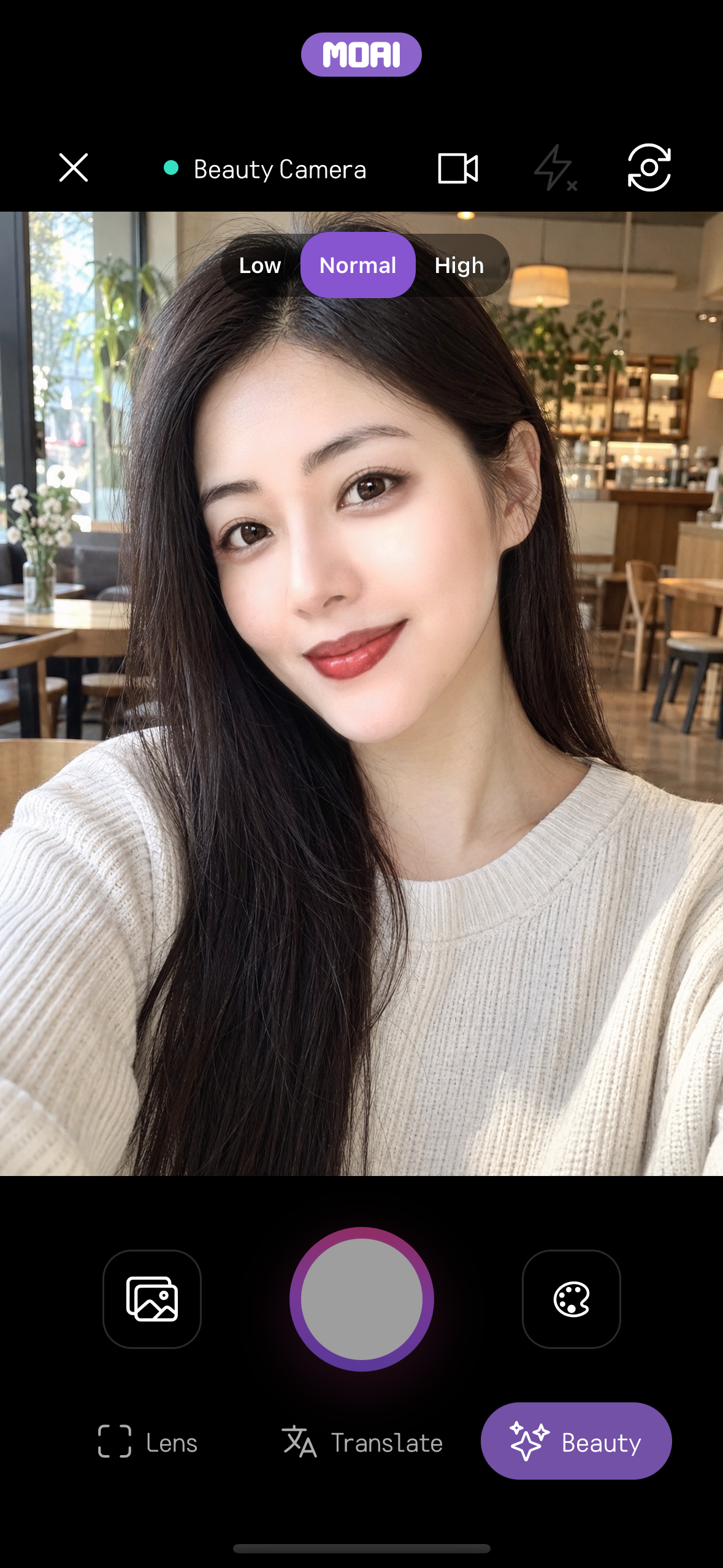
Beauty Camera home screen with the Beauty mode selected next to Lens and Translate, showing the live camera view with Low, Normal and High quality options.
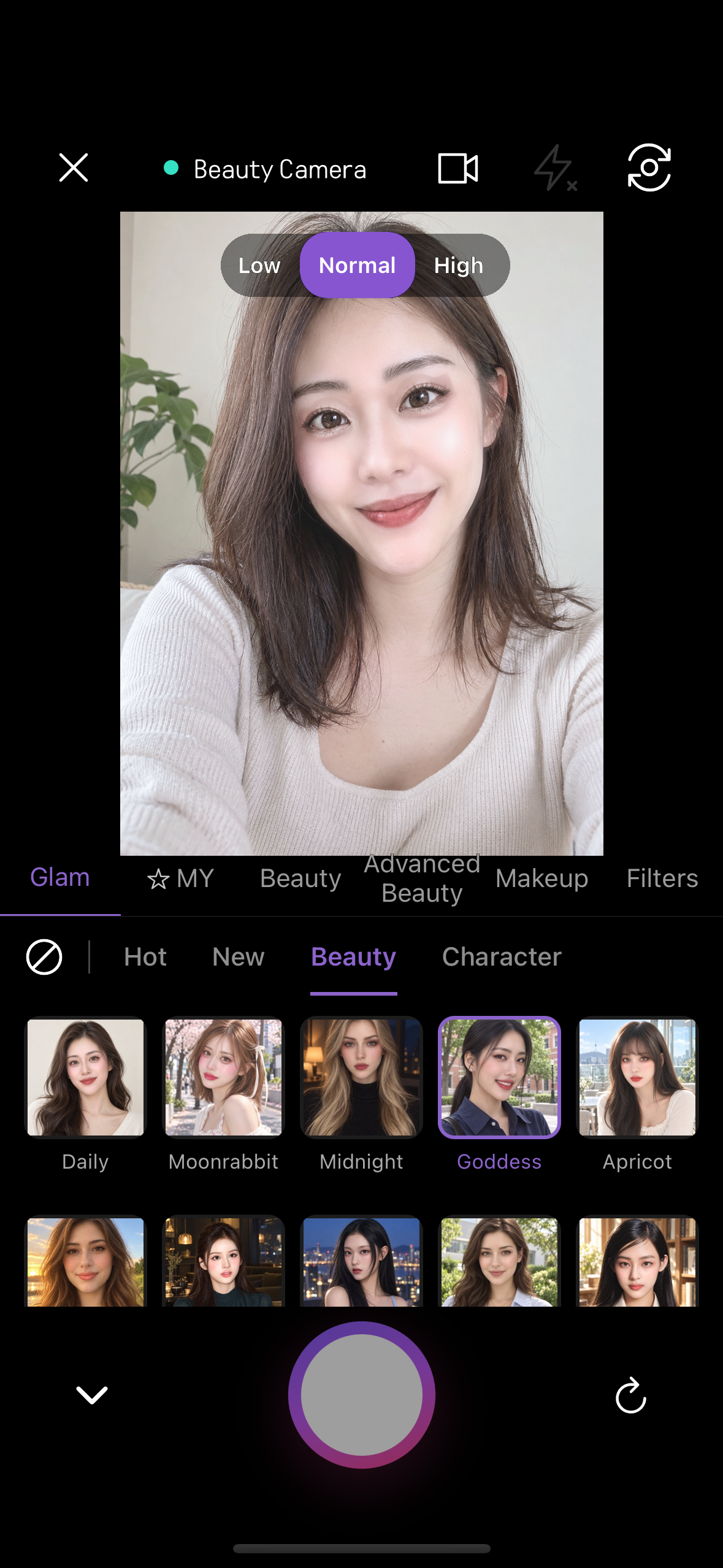
Live beauty camera on the Glam tab with the Goddess look selected and highlighted.
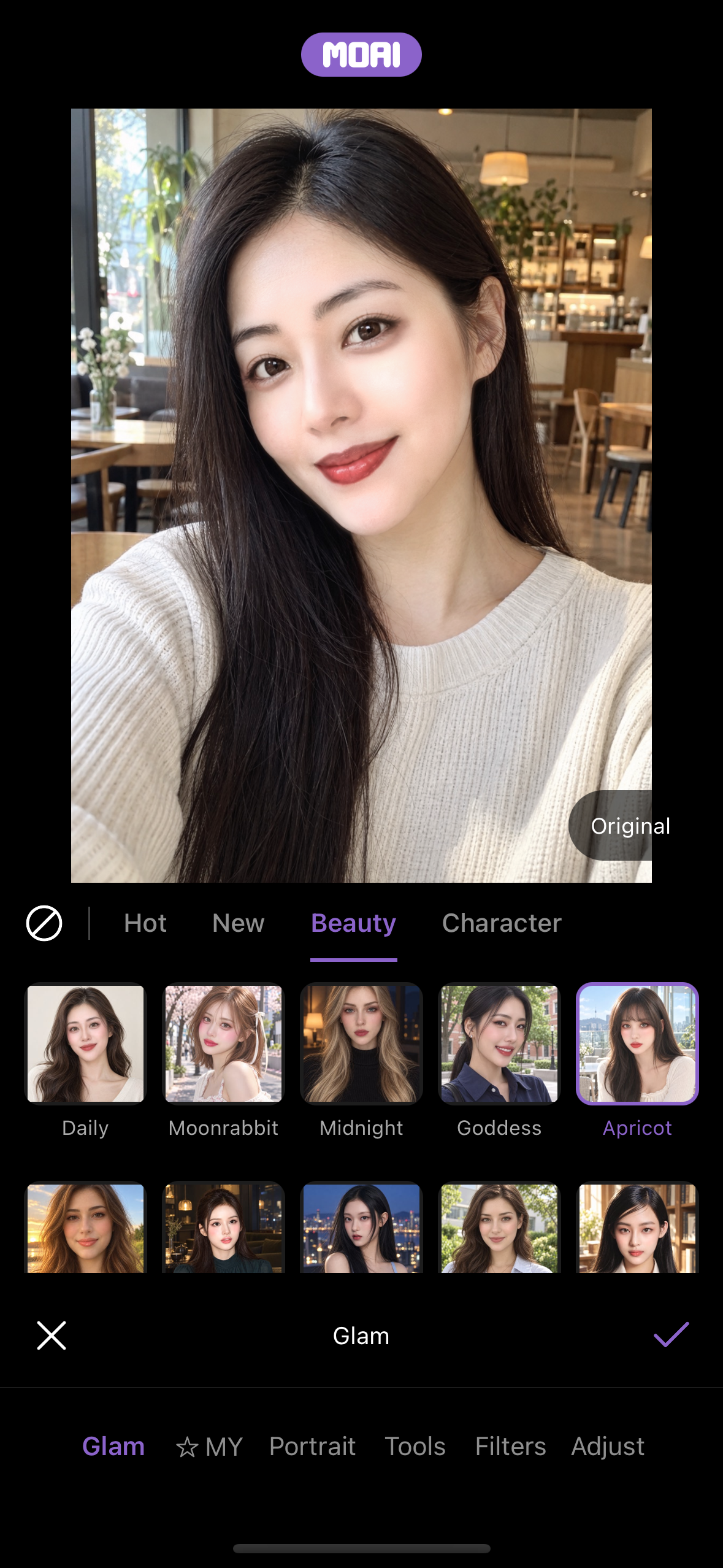
The Glam tab of the MOAI Beauty editor: the Beauty category lists 20 looks, here with Apricot applied to a fictional adult portrait. Sample content shown.
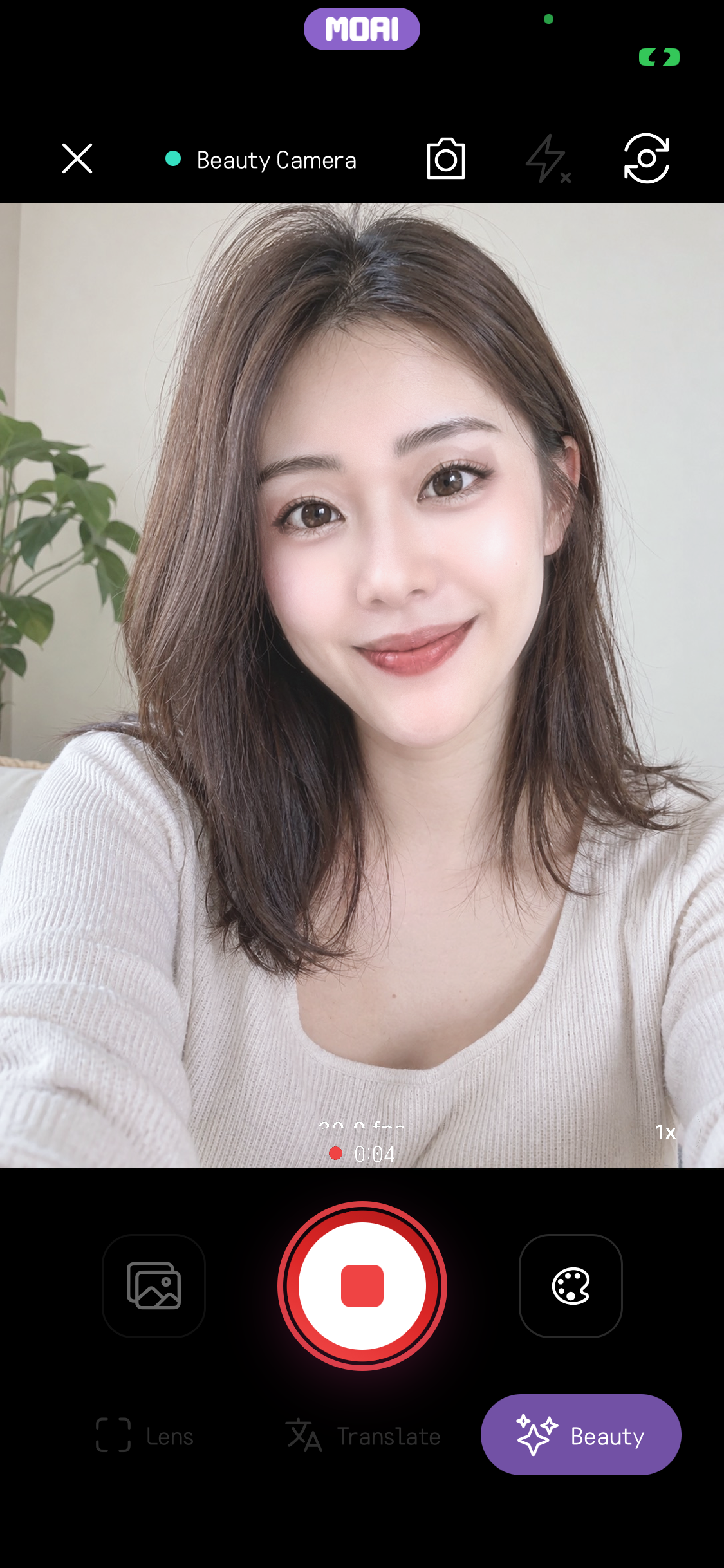
Recording a beauty video with the timer running.
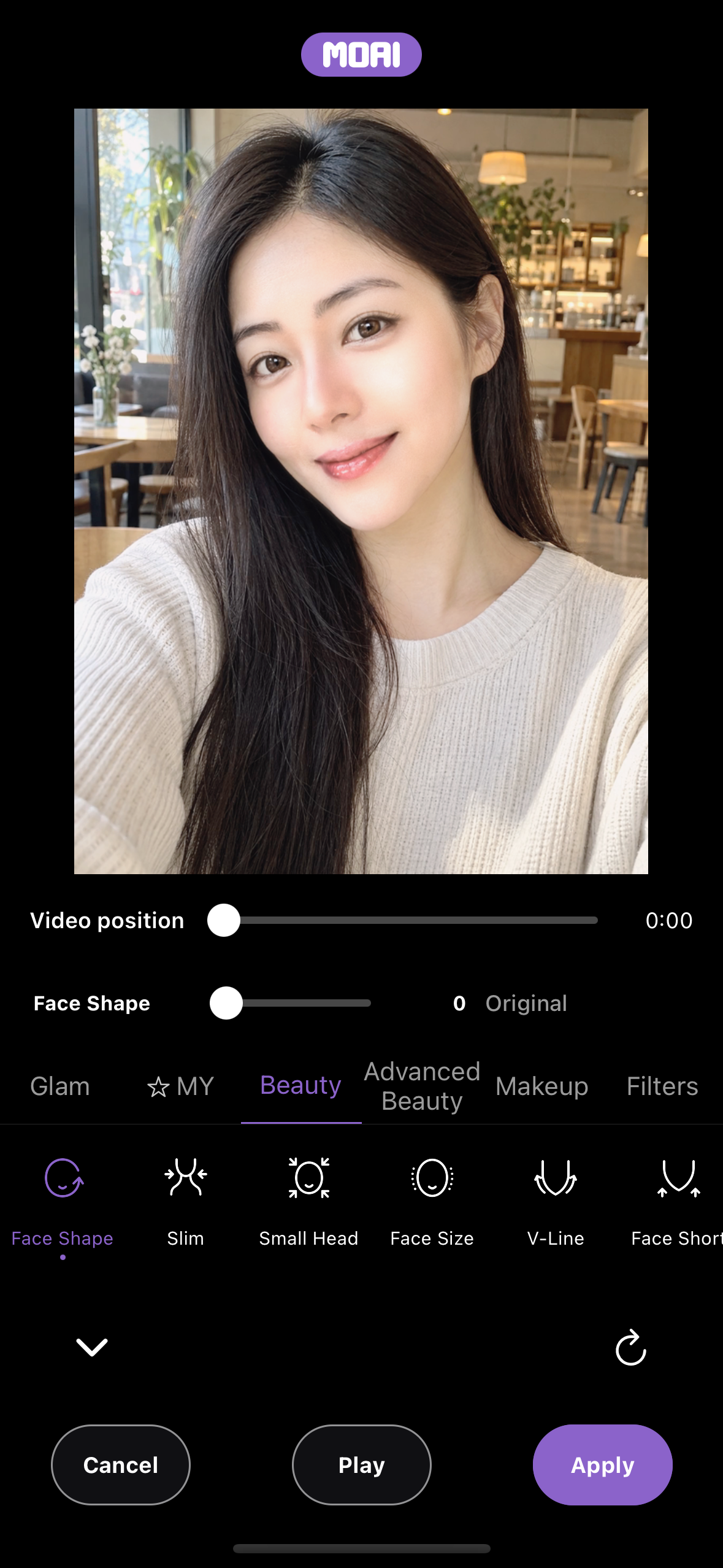
Video beauty editor on the Beauty tab, showing a Video position slider, the Face Shape slider and Cancel, Play and Apply buttons.
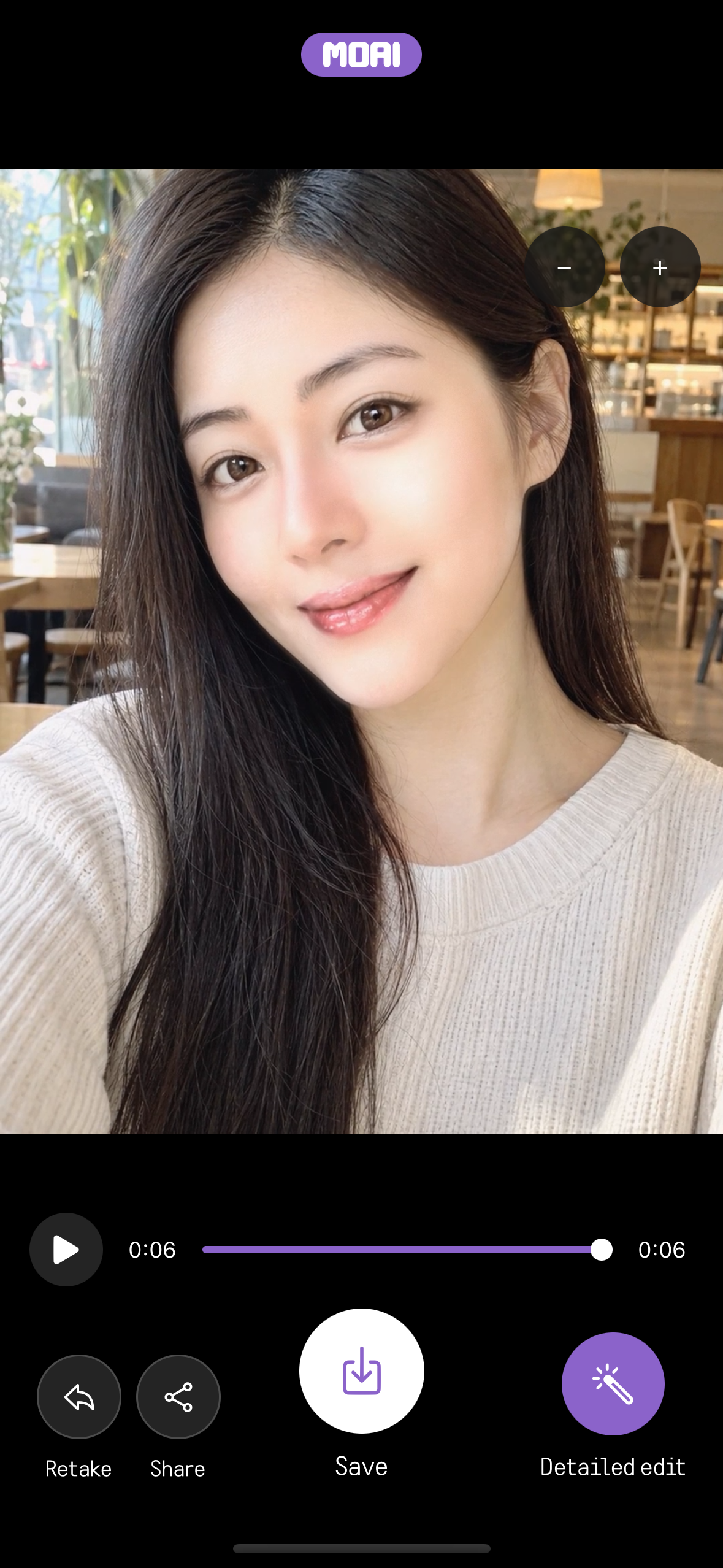
Video result screen with a playback bar at the end of the clip and Retake, Share, Save and Detailed edit buttons.
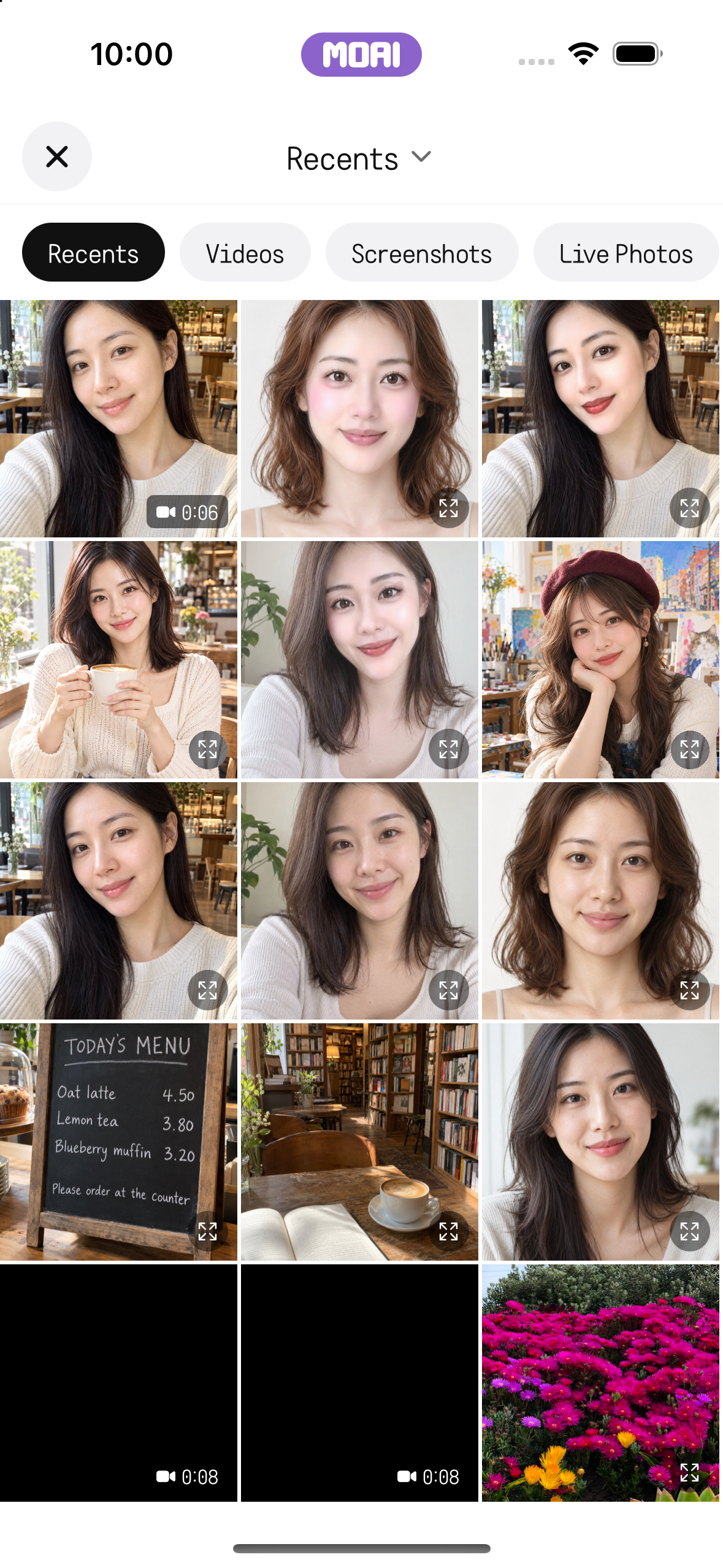
The MOAI album picker opened from the Beauty camera, with sample photos of fictional adults and a sample clip. Sample content shown.
What you can do
Live beauty effects
See face shape, eyes, nose, skin and makeup adjustments before you take a photo or video. Makeup alone has 224 options, 597 in total.
One-tap Glam looks
Choose a look to apply makeup and retouching at once, and compare it with the original.
Retouch album photos
Open a photo from your album, reshape features, add makeup or a filter, then finish with crop, object eraser, mosaic and background blur.
Beauty video
Record videos with retouching on, apply a look to a recorded clip, then save or share it.
How it works
Open the Beauty Camera from the MOAI tab.
Choose effects in the Glam, Beauty, Makeup and Filters panels and take a shot.
Fine-tune it in the detailed editor, then save it to your album or share it.