New Memo
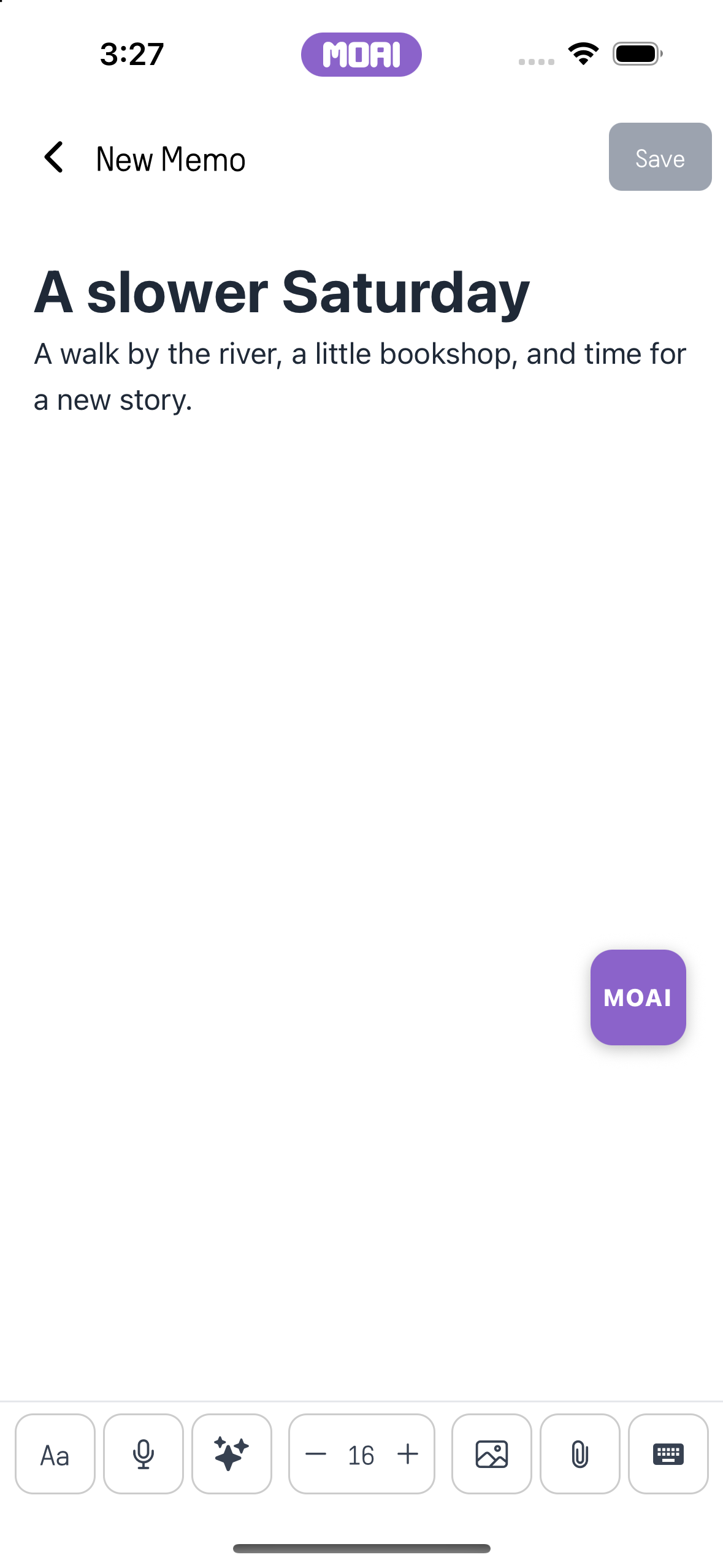
Write and edit a note, add images and attach the material you want to keep with it.
- Apply a bulleted list, then undo the change.
MOAI
Write a note. Learn a word. Make something new. Keep a conversation going. Explore what you can do with MOAI.
Every feature of the MOAI app on iPhone and Android.
Give your thoughts room.
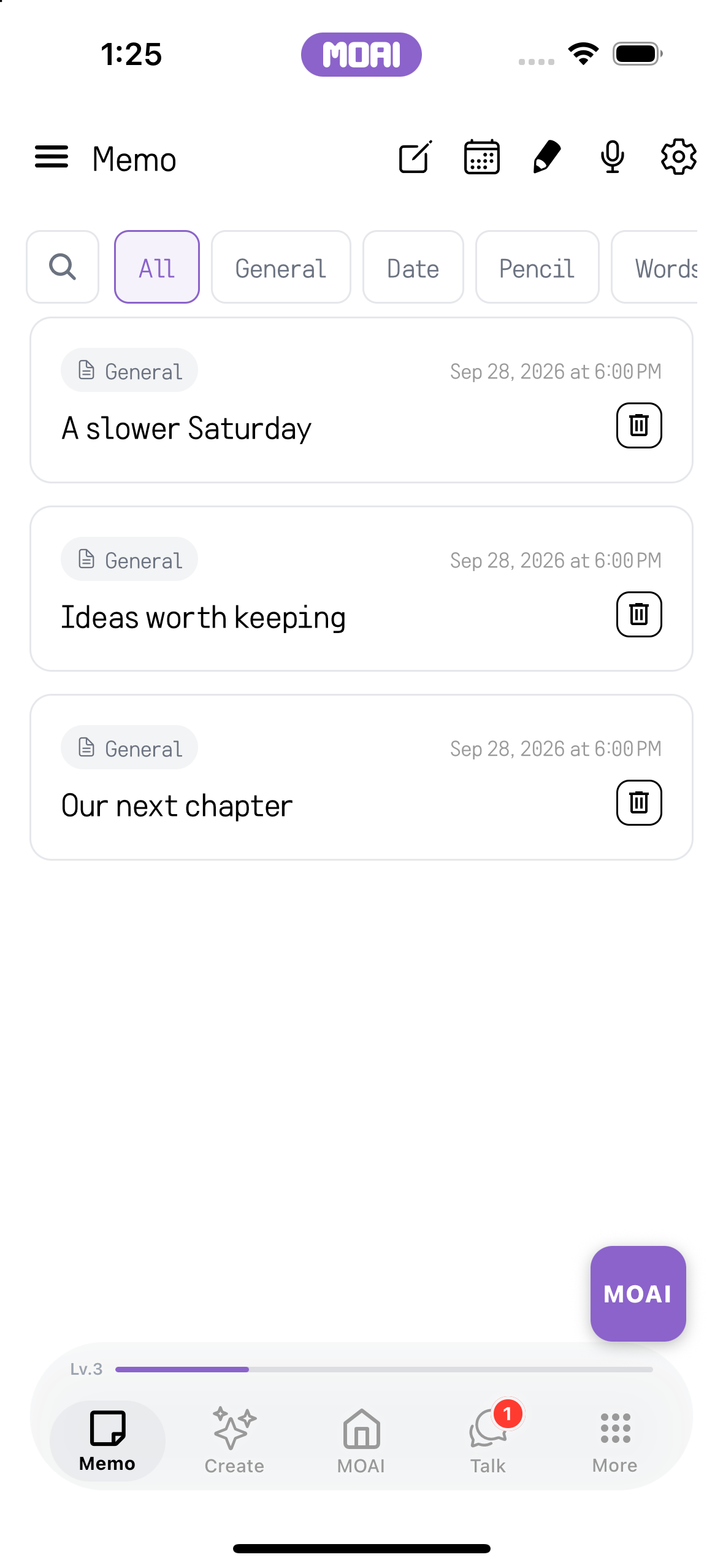
Write quick notes, manage your schedule with the calendar, record voice memos and meetings, and let MOAI organize your notes.
Write and edit a note, add images and attach the material you want to keep with it.
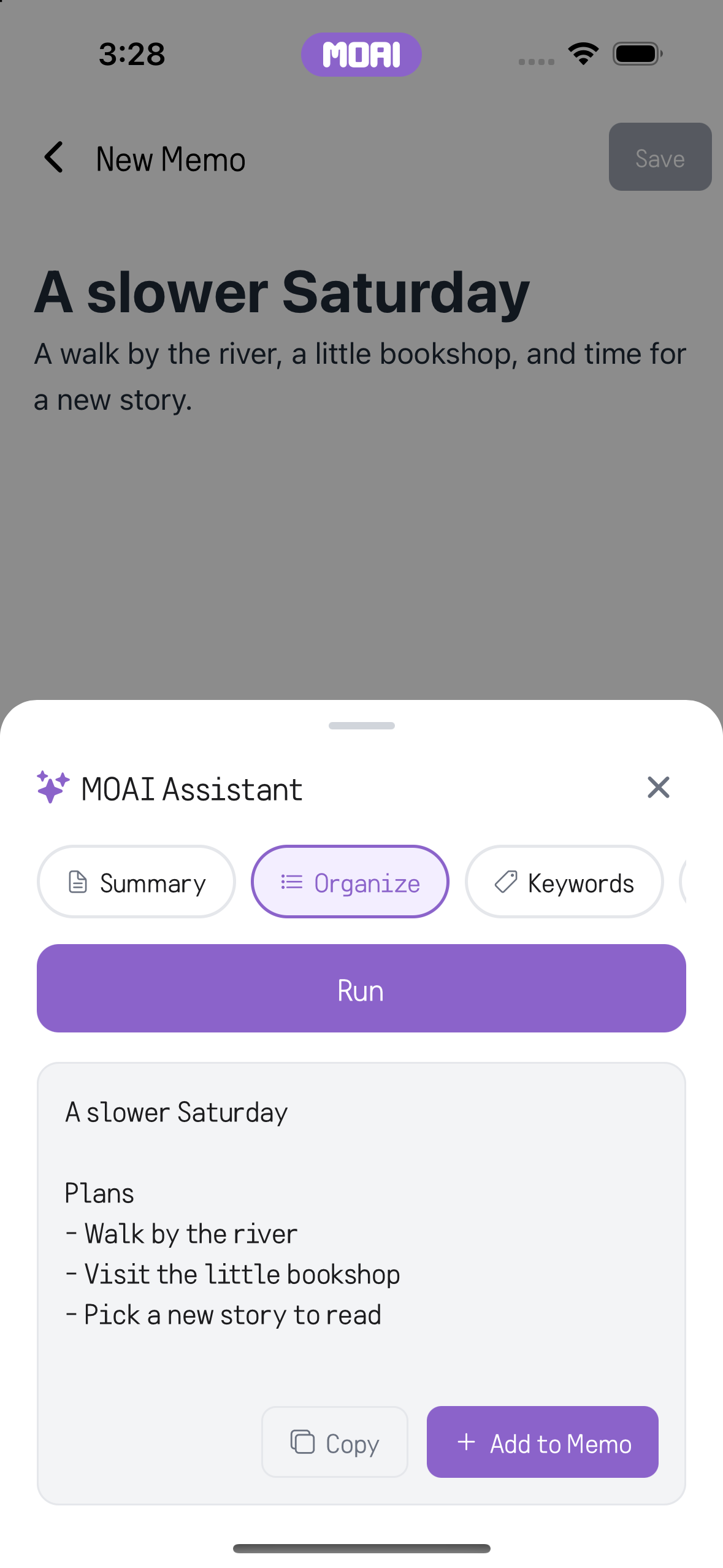
Ask AI to organise your notes, then review the result alongside the original.
Find a note with search and filters for different kinds of content.
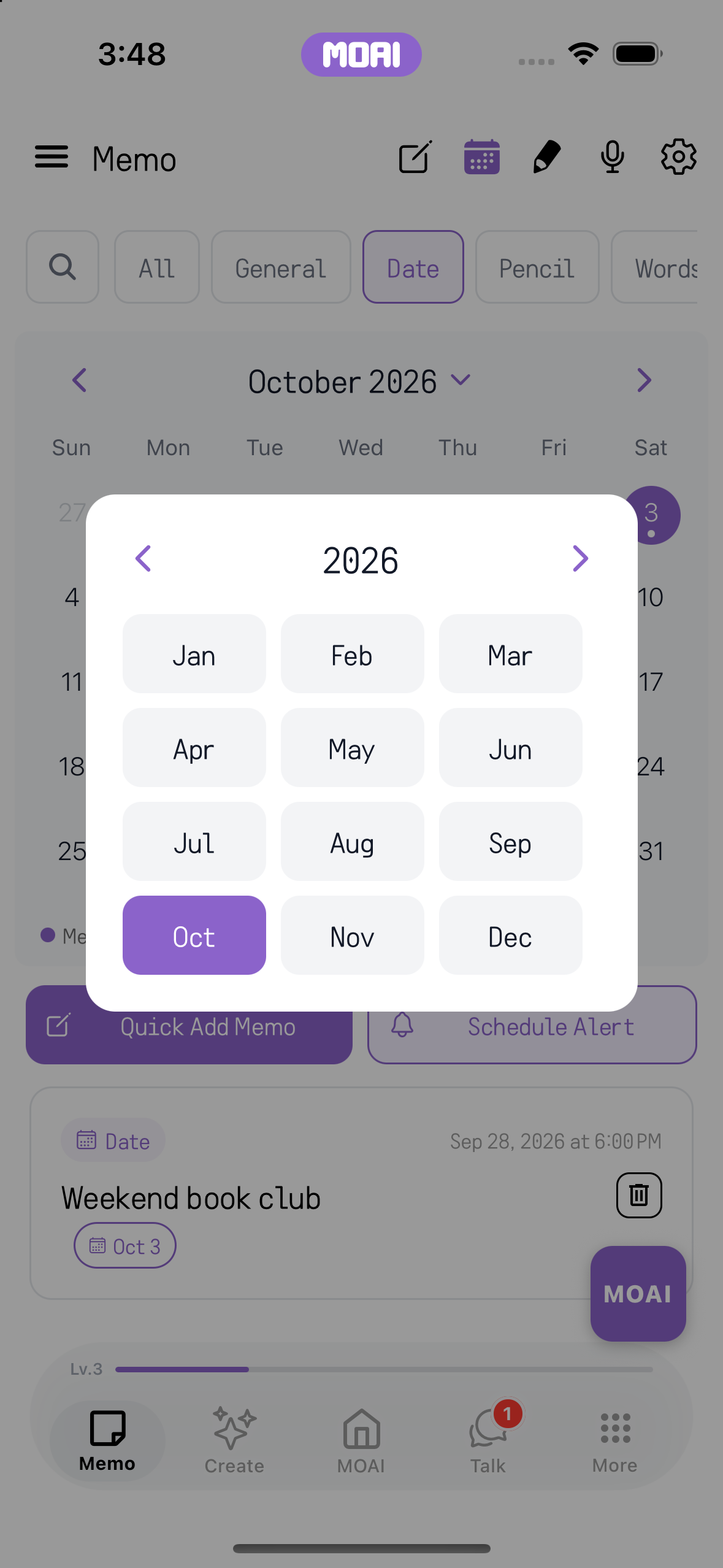
Move between month and year views, open a date and add a note to that day.
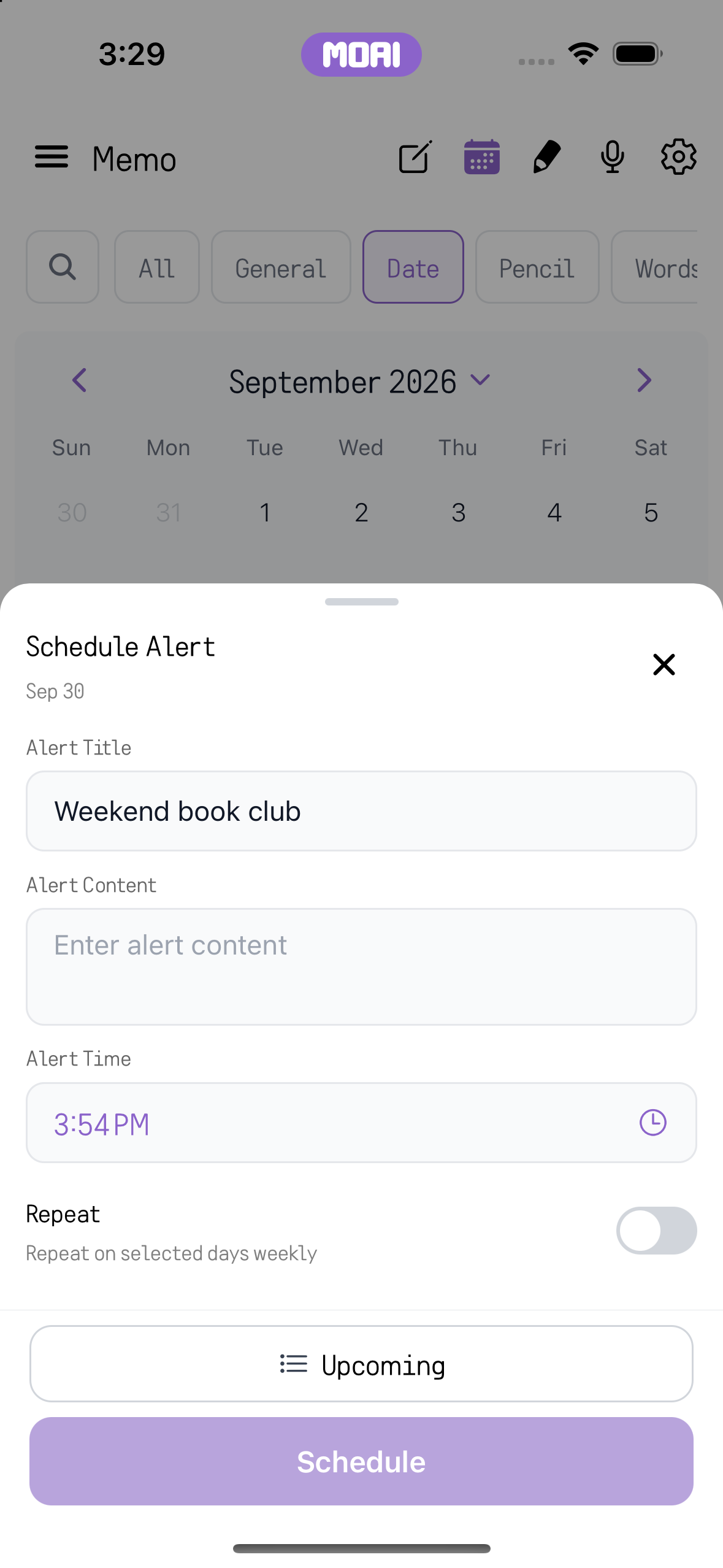
Set a time for a note so its notification can bring you back to it.
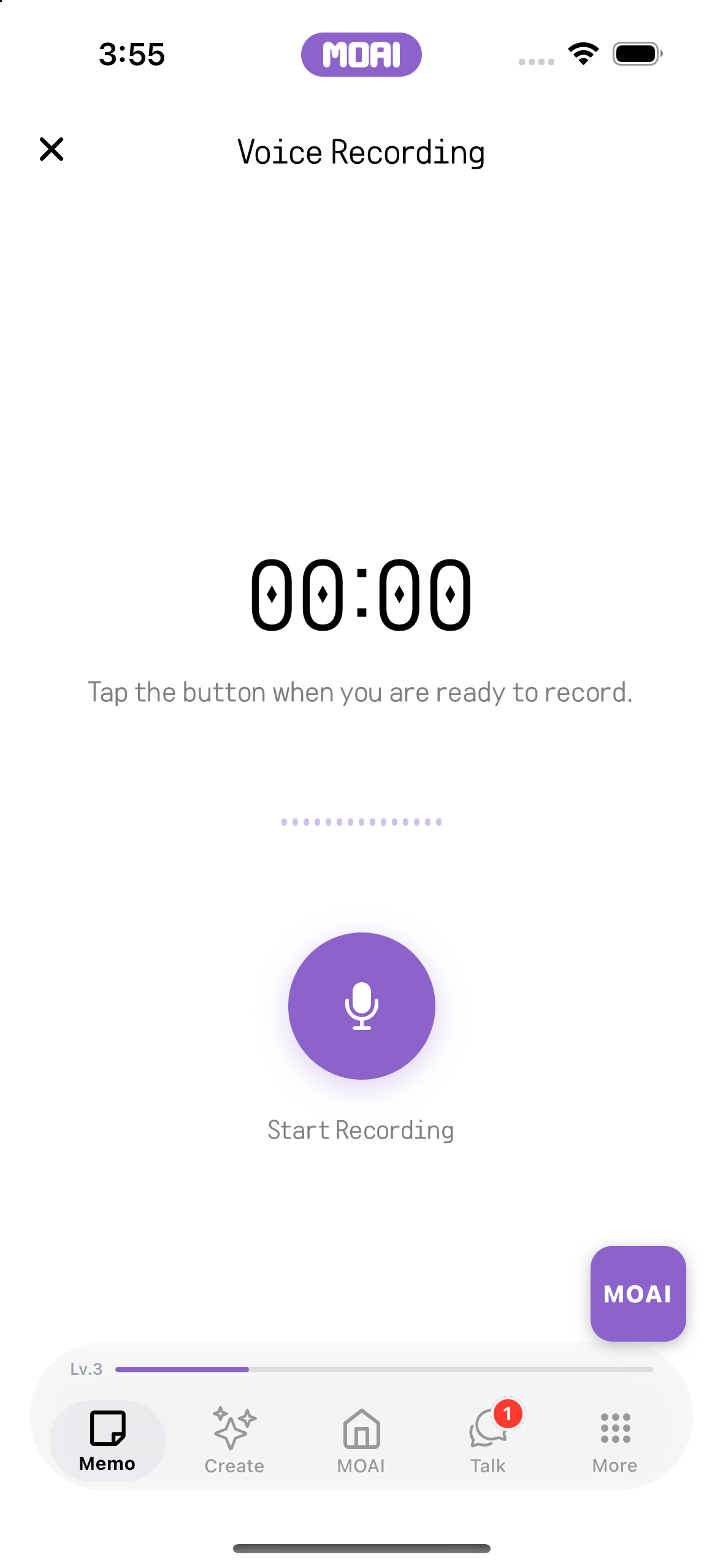
Record a thought, transcribe the audio and organise the text. Return to the recording for playback.
Record a meeting and review its transcript, speakers, summary and action items.
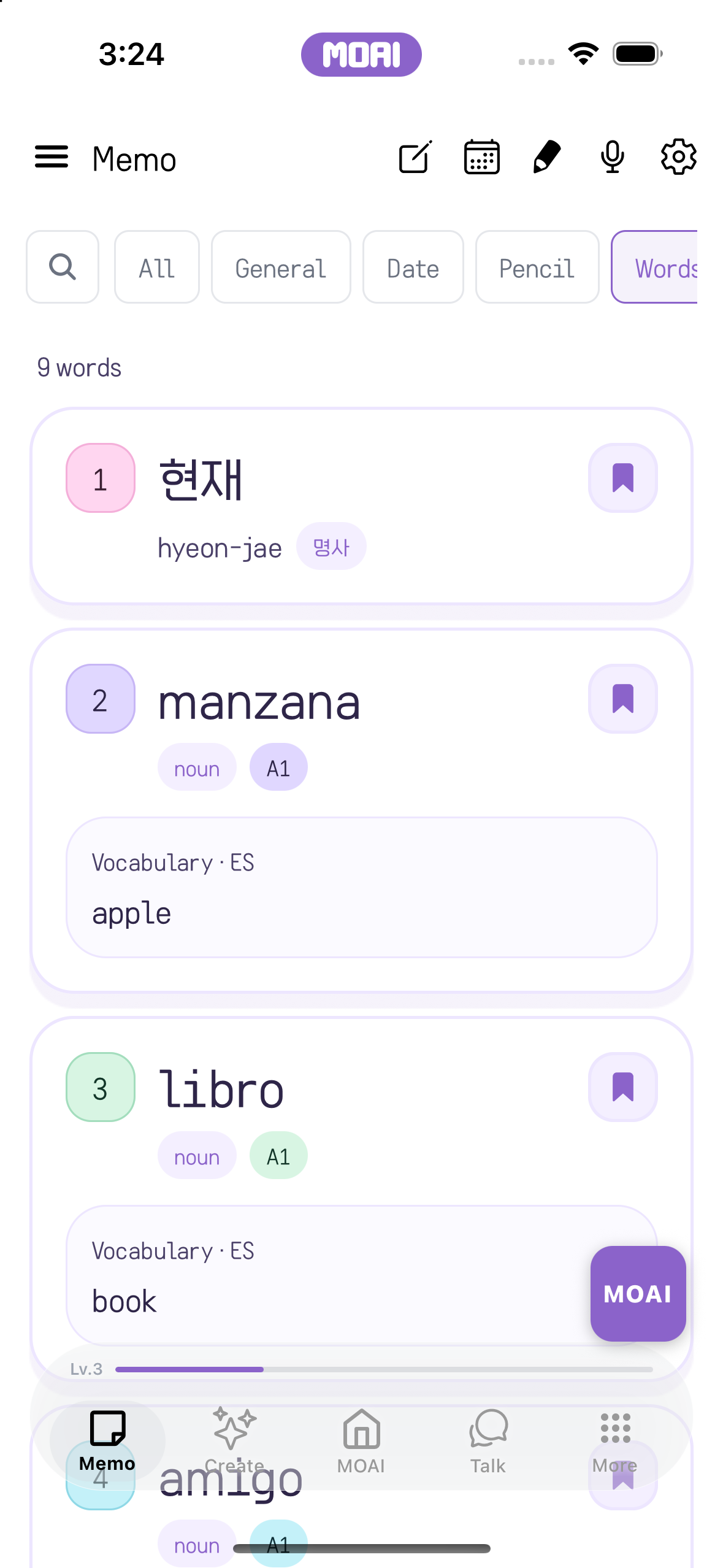
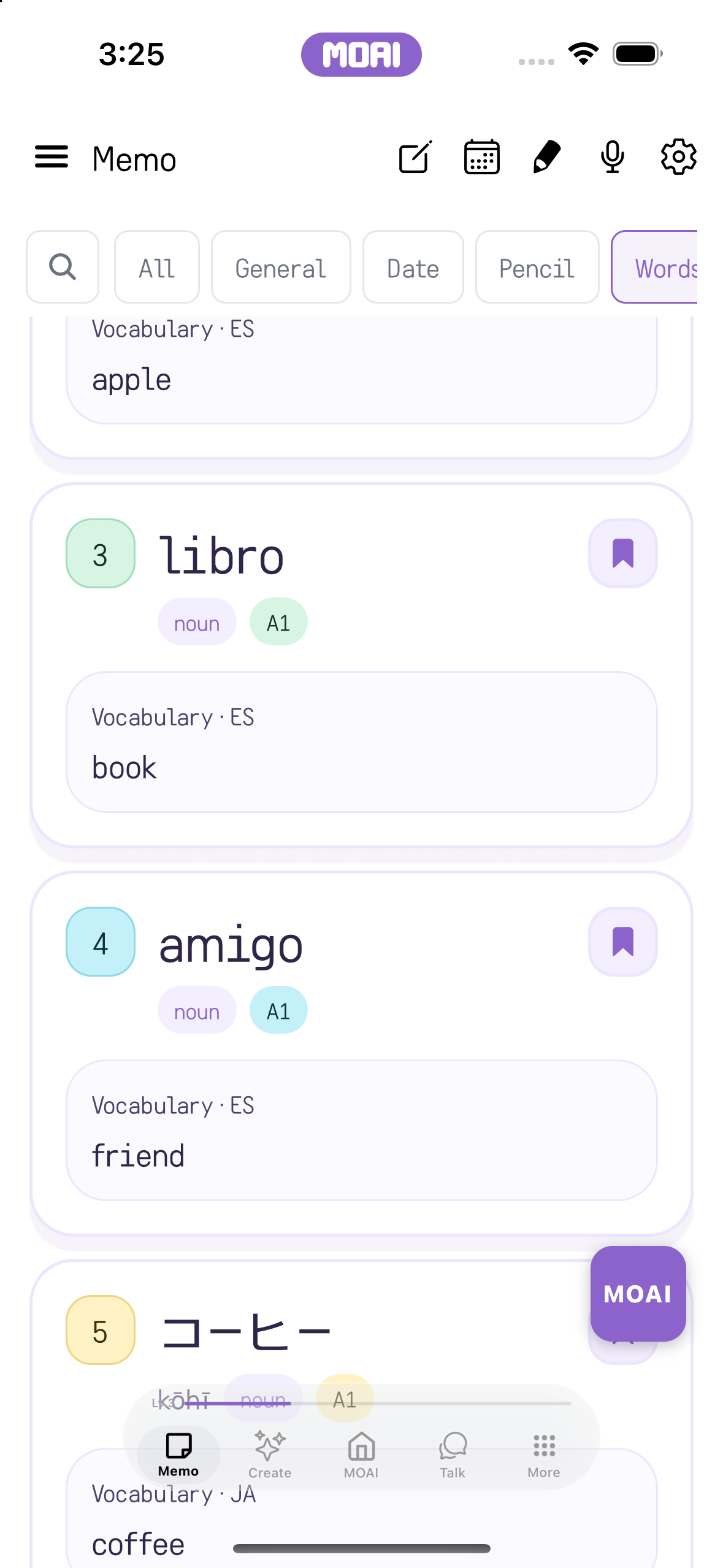
Find bookmarked words through the vocabulary filter and continue studying from your notes.
Bring material into your notes, export a PDF or share a note with another app.
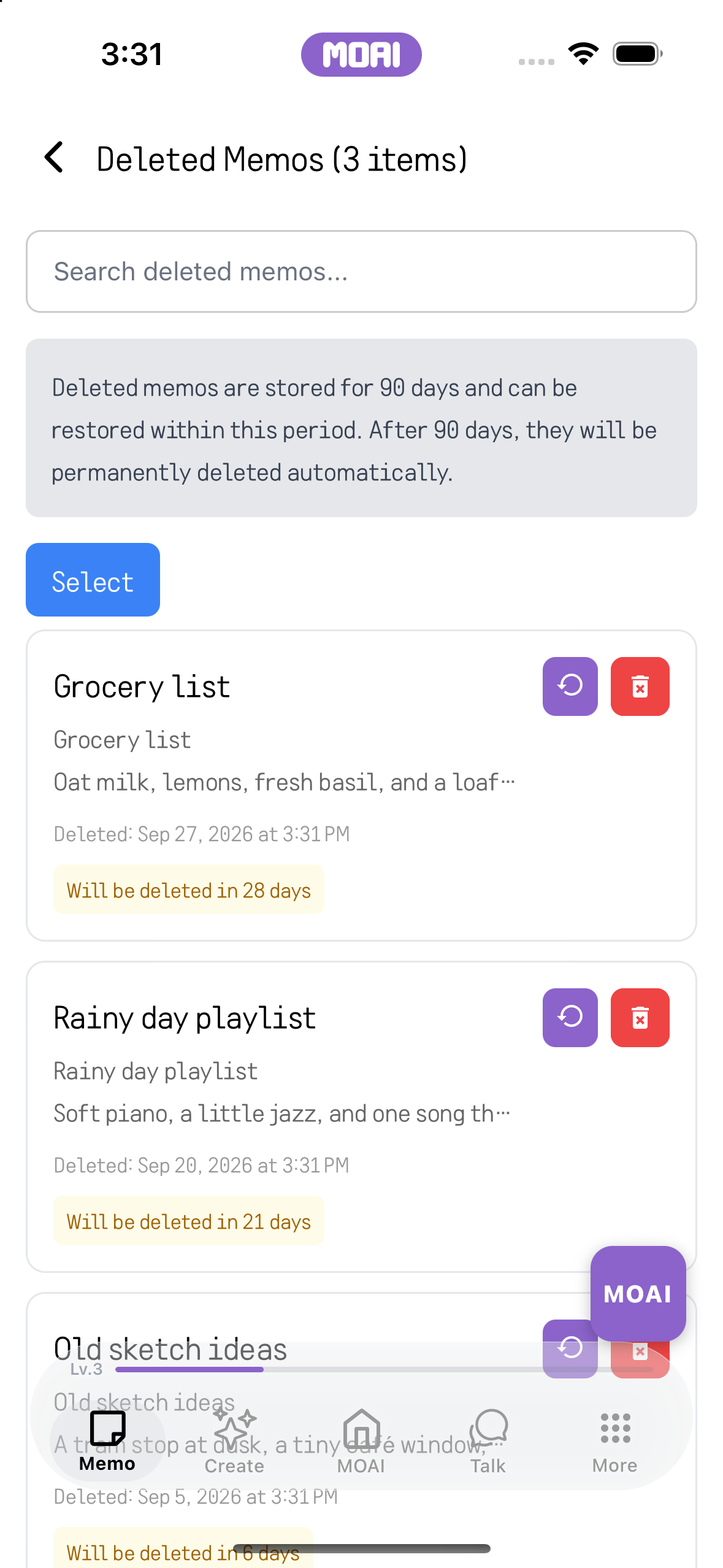
Open the trash and restore a note you want to keep.
Start with an idea.
Explore a wide range of studio tools. Go from lyrics, sheet music, backing tracks and guide vocals to a finished song, edit videos with advanced tools, edit and generate images, draw, retouch with beauty effects, make moving images and create freely.
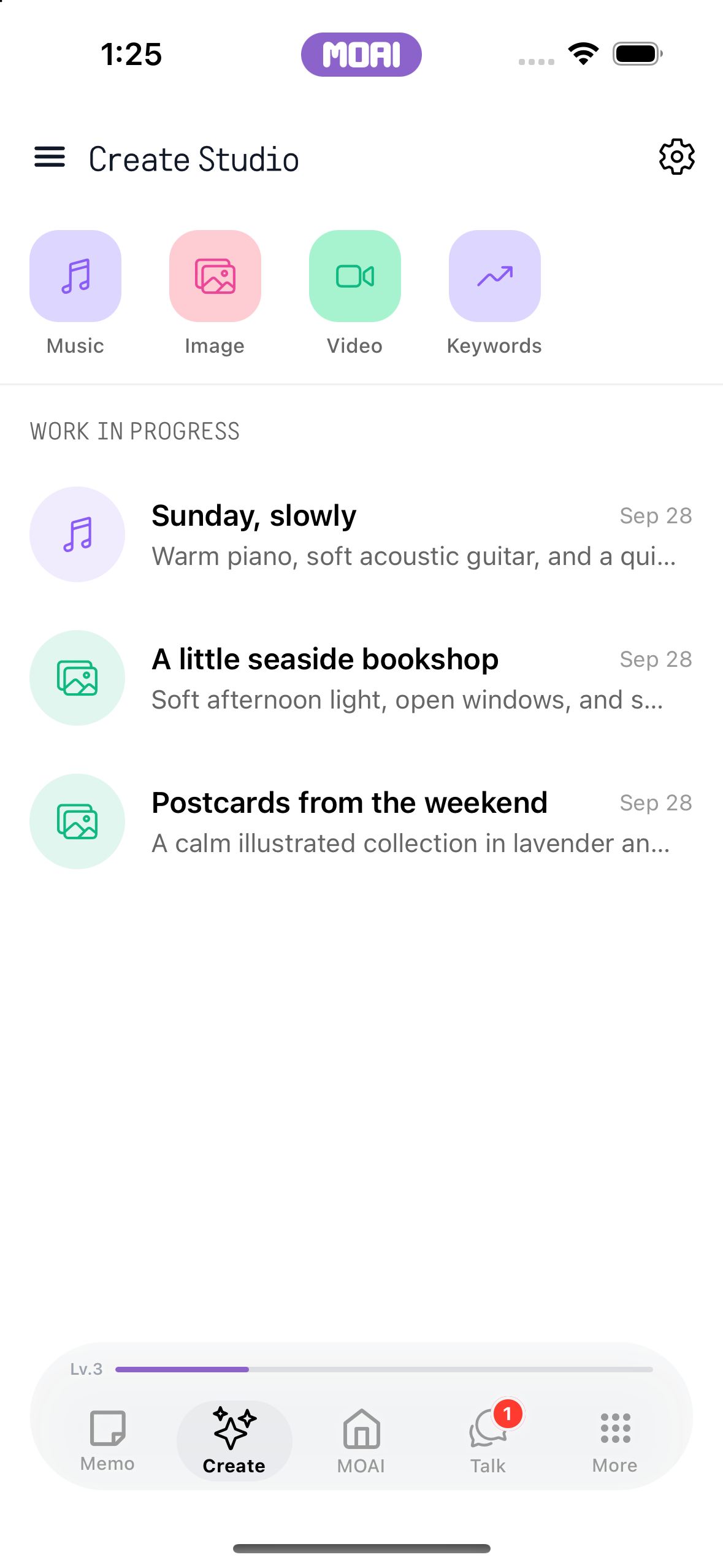
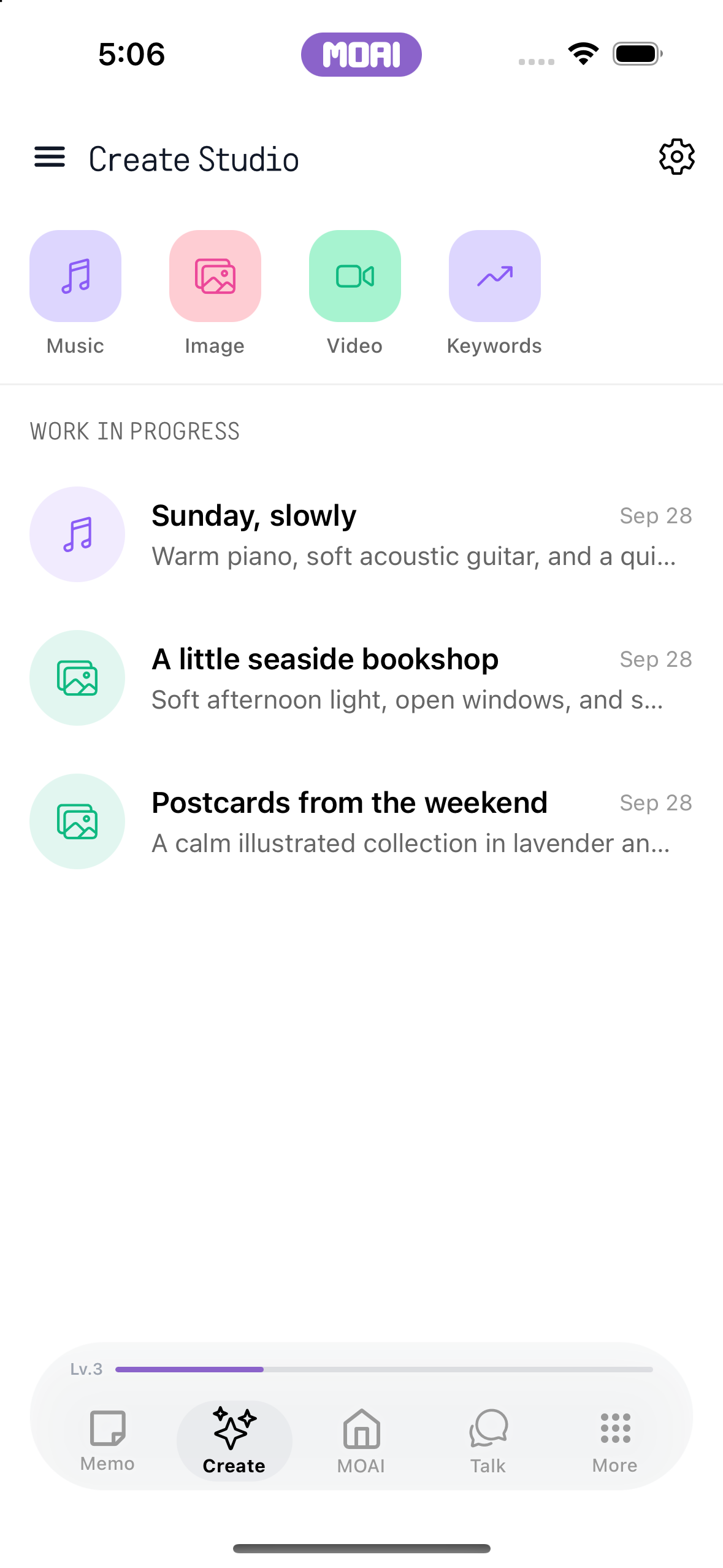
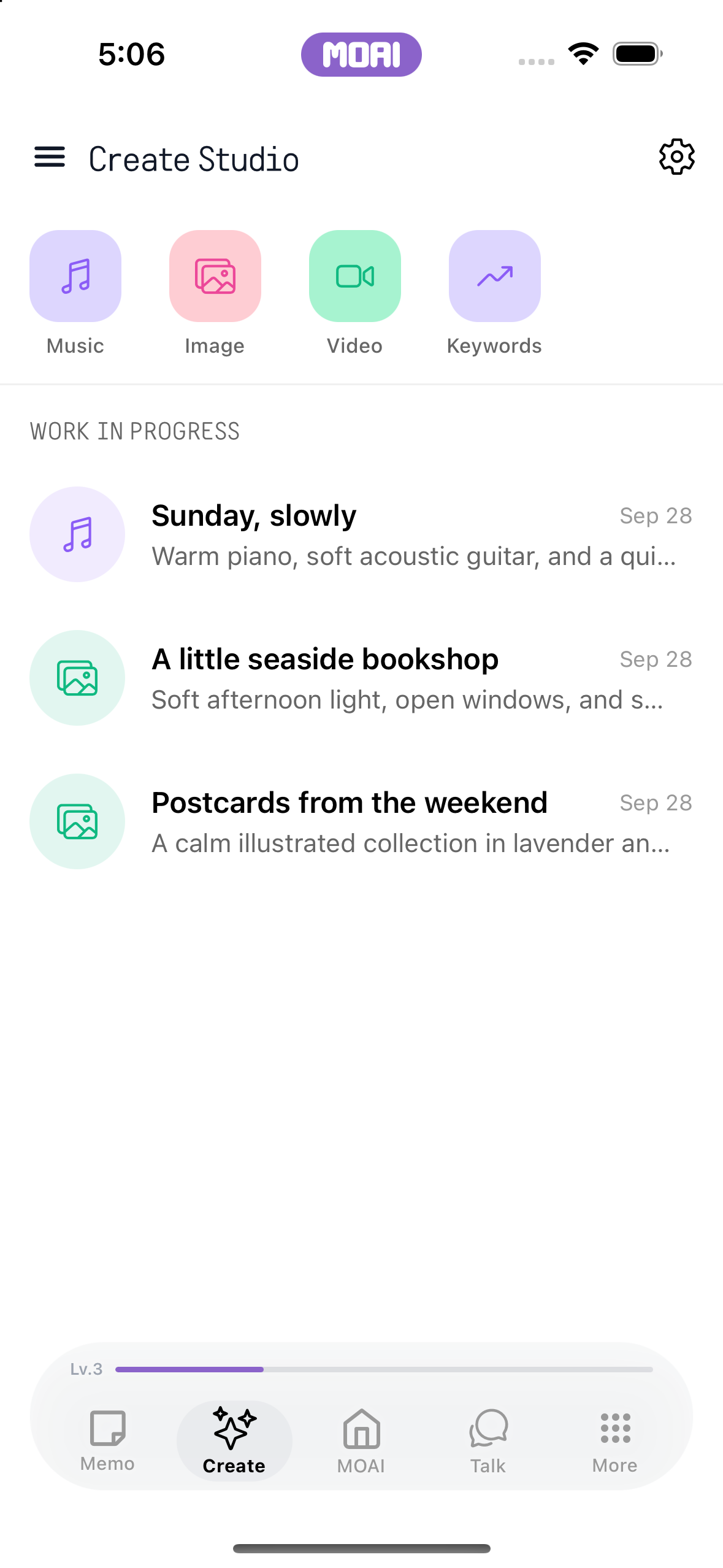
Explore creative tools and agents, then return to the works you have made.
Describe a musical idea, generate a track and organise your music into albums.
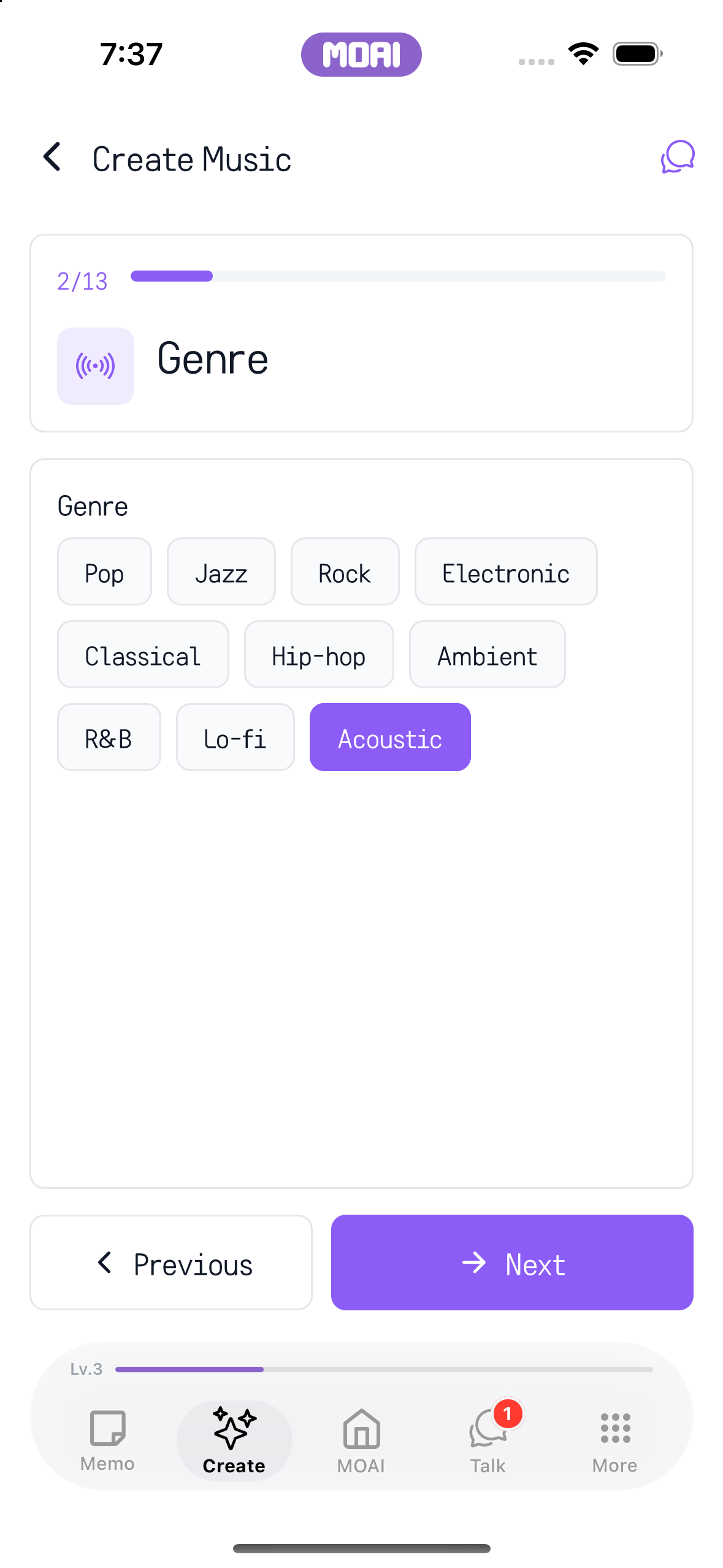
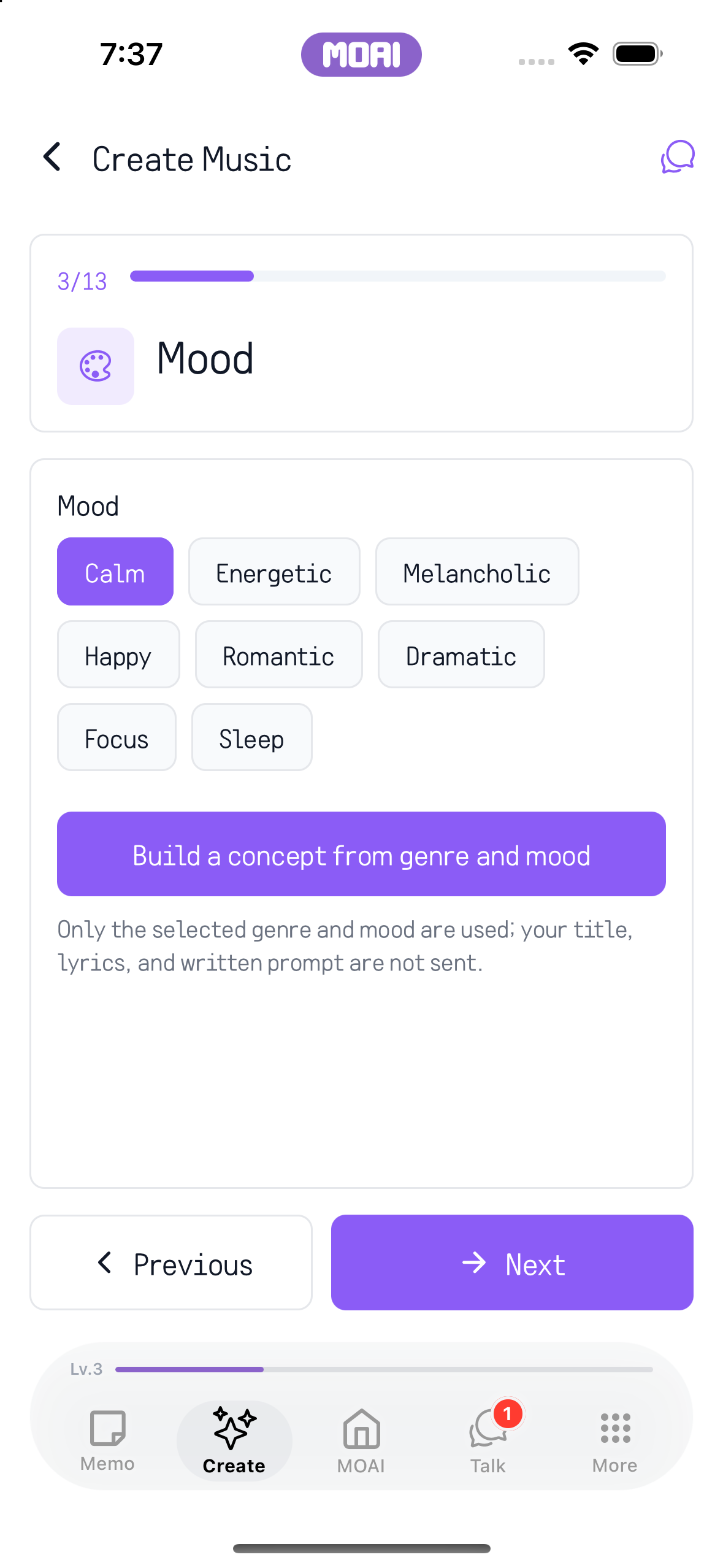
Build a beat, work on the composition and play it back.
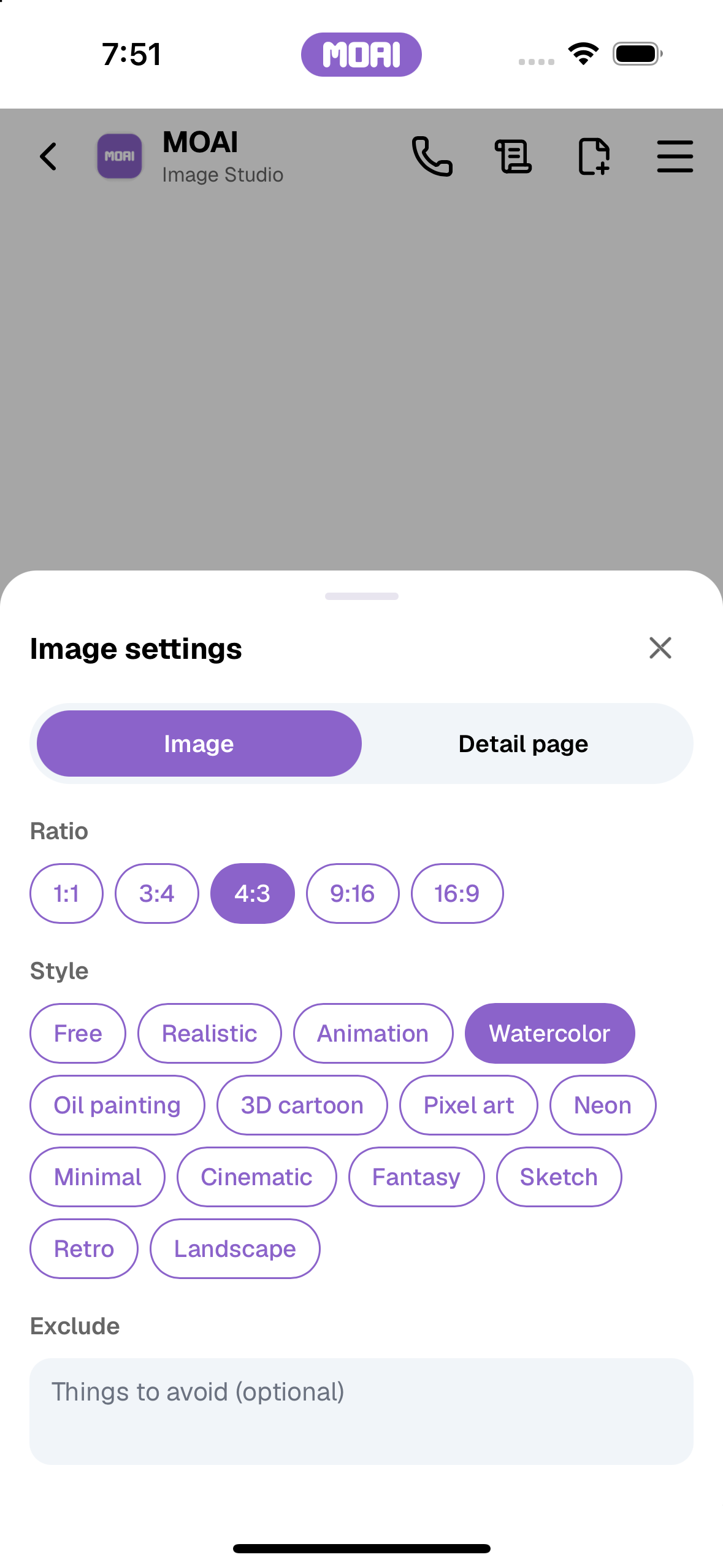
Describe an image in chat, choose its ratio and style, and manage your creations in Image Studio.
Choose a brush, draw on the canvas and save your work in the gallery.
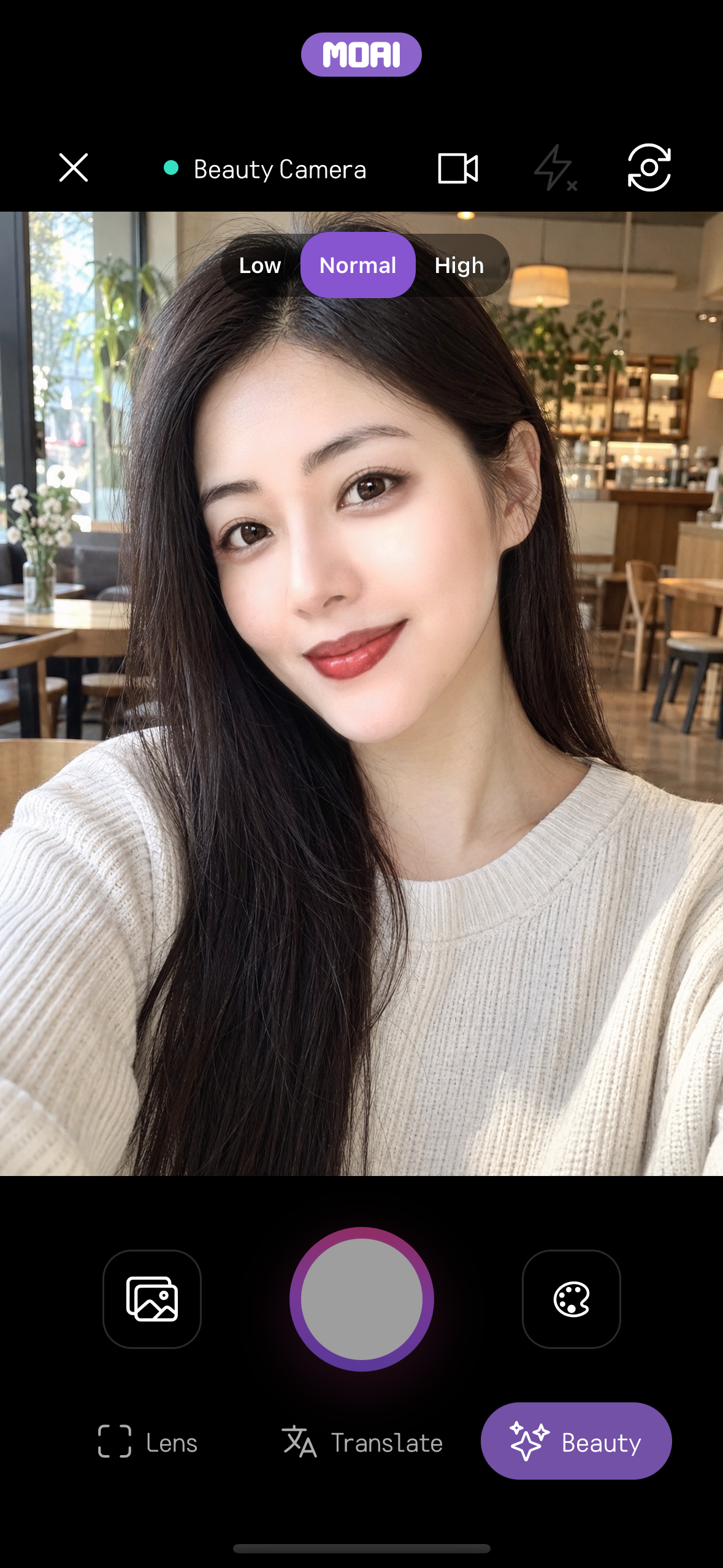
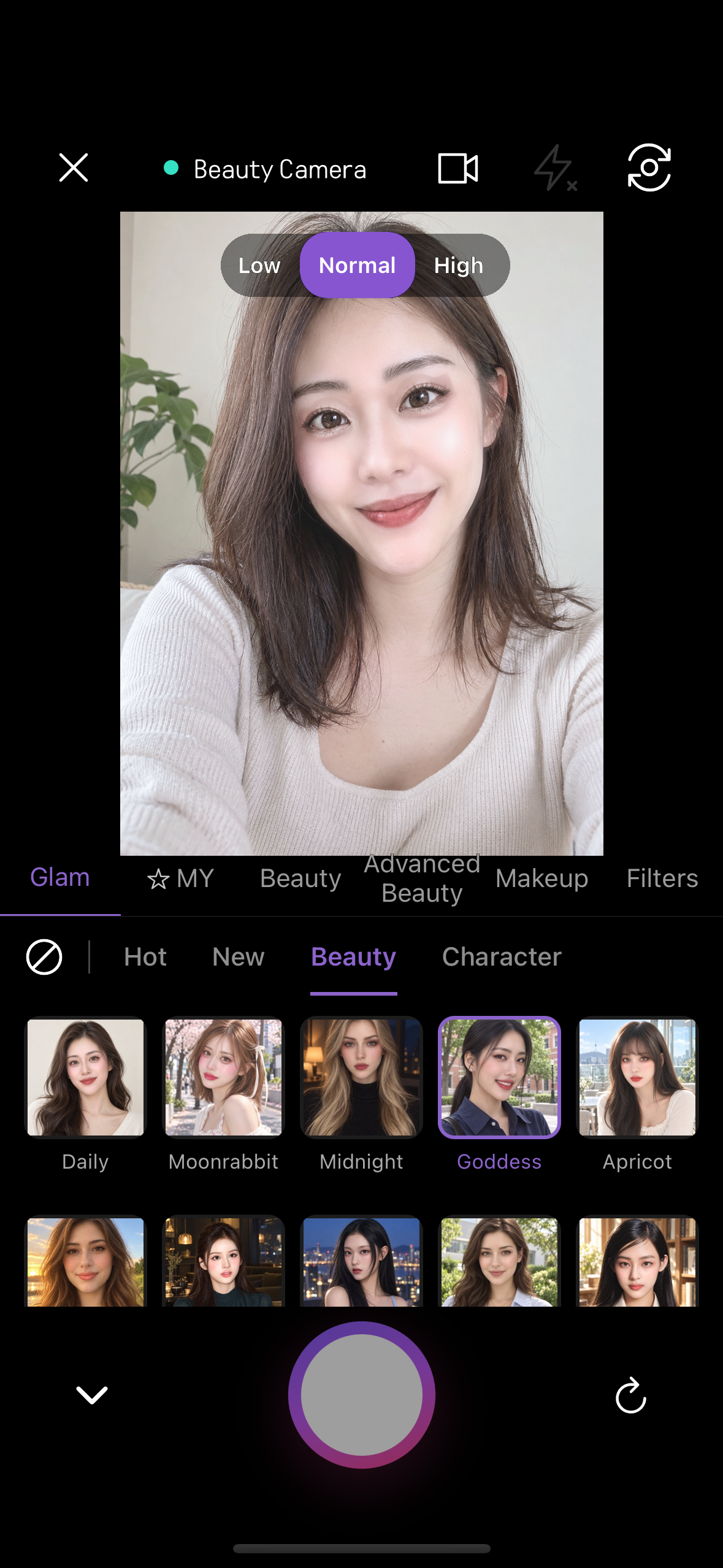
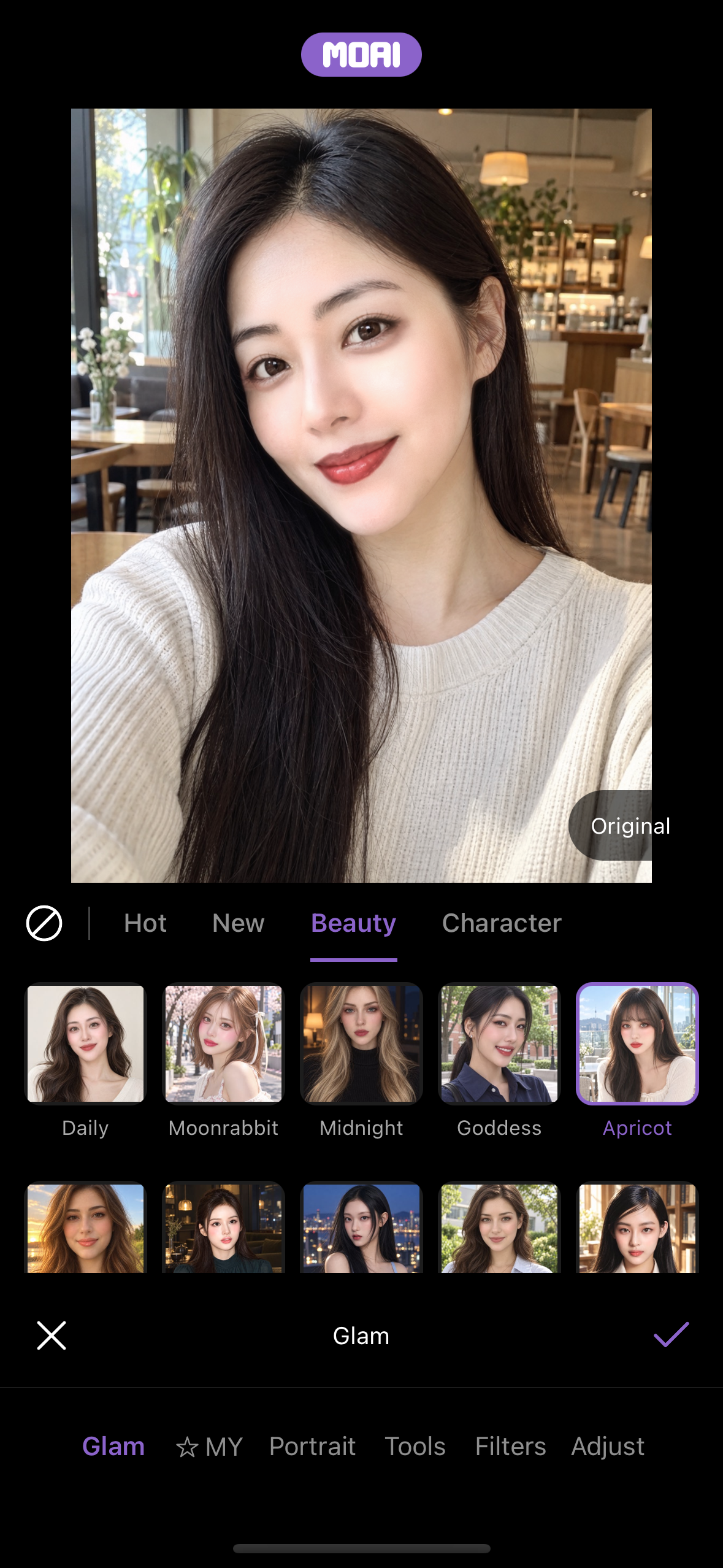
Shoot with live beauty effects, switch between the Glam, MY, Beauty, Advanced Beauty, Makeup and Filters panels, then save or edit the photo.
Browse a look, apply it to the camera and compare the result.
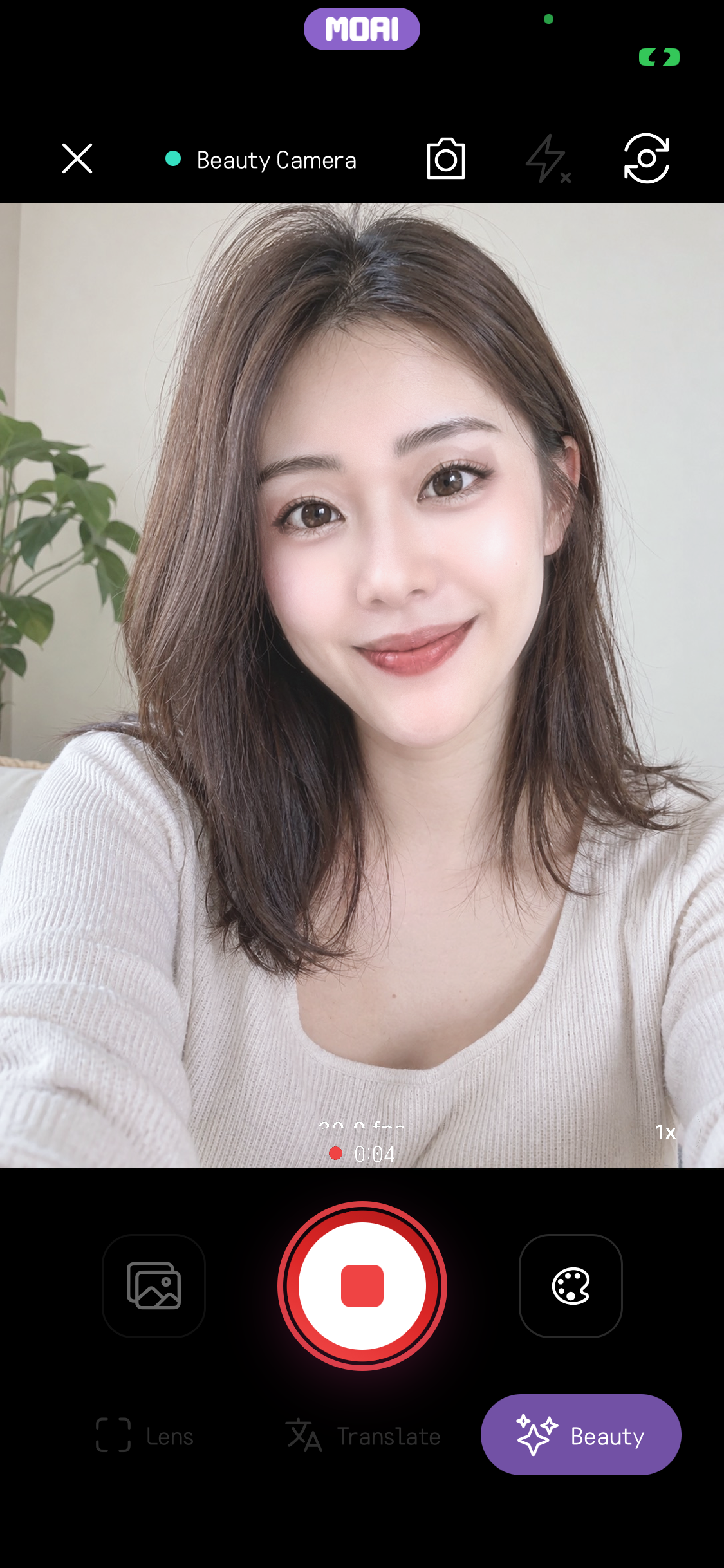
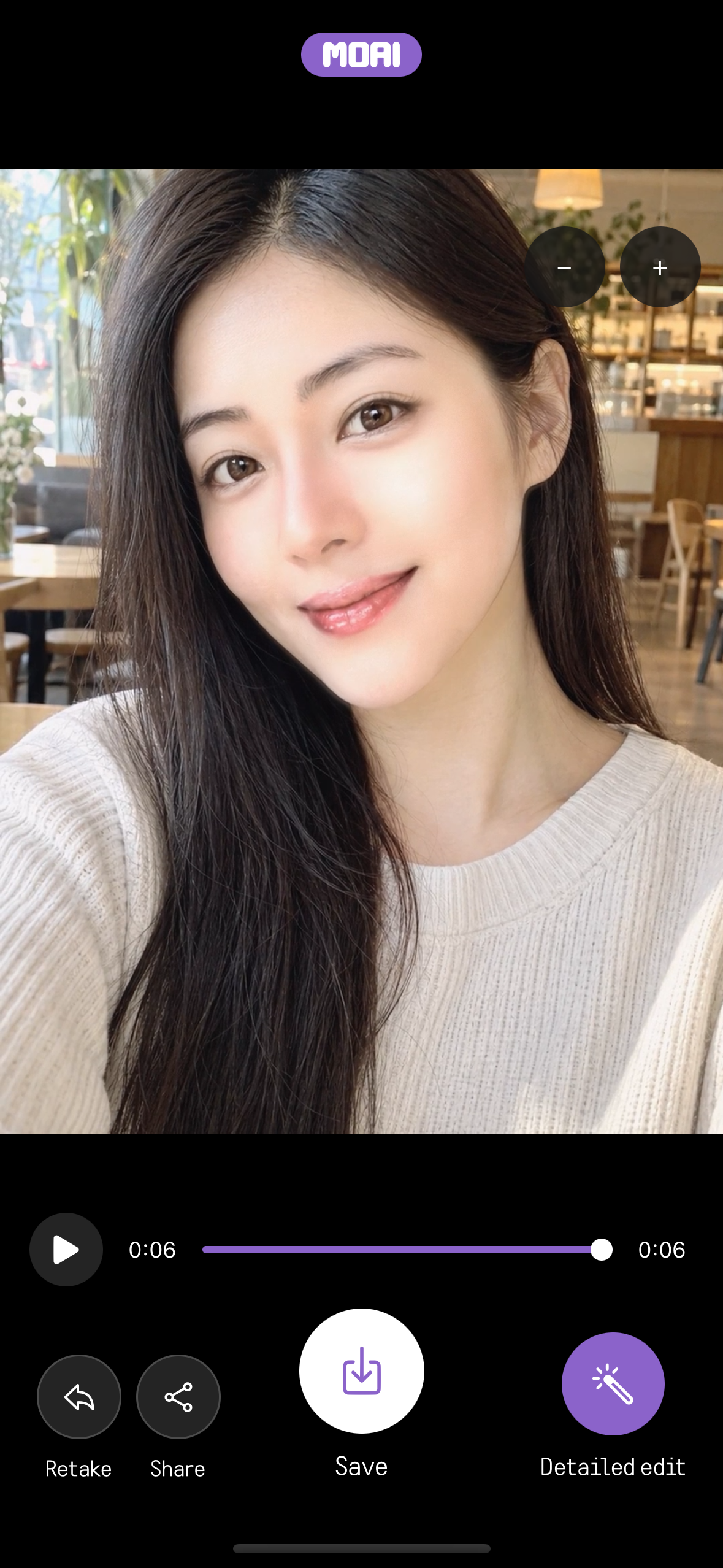
Record a clip, play it back, edit it and save or share the result.
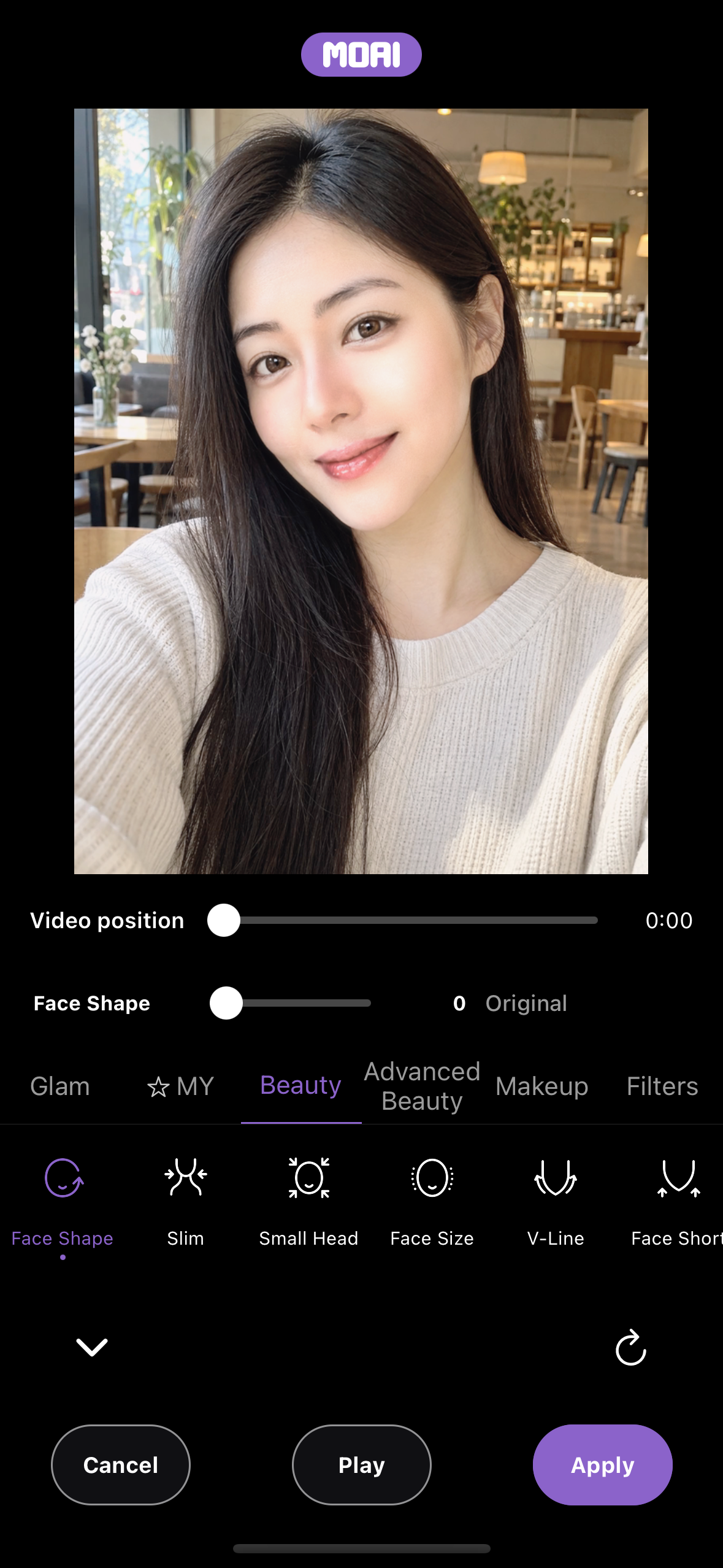
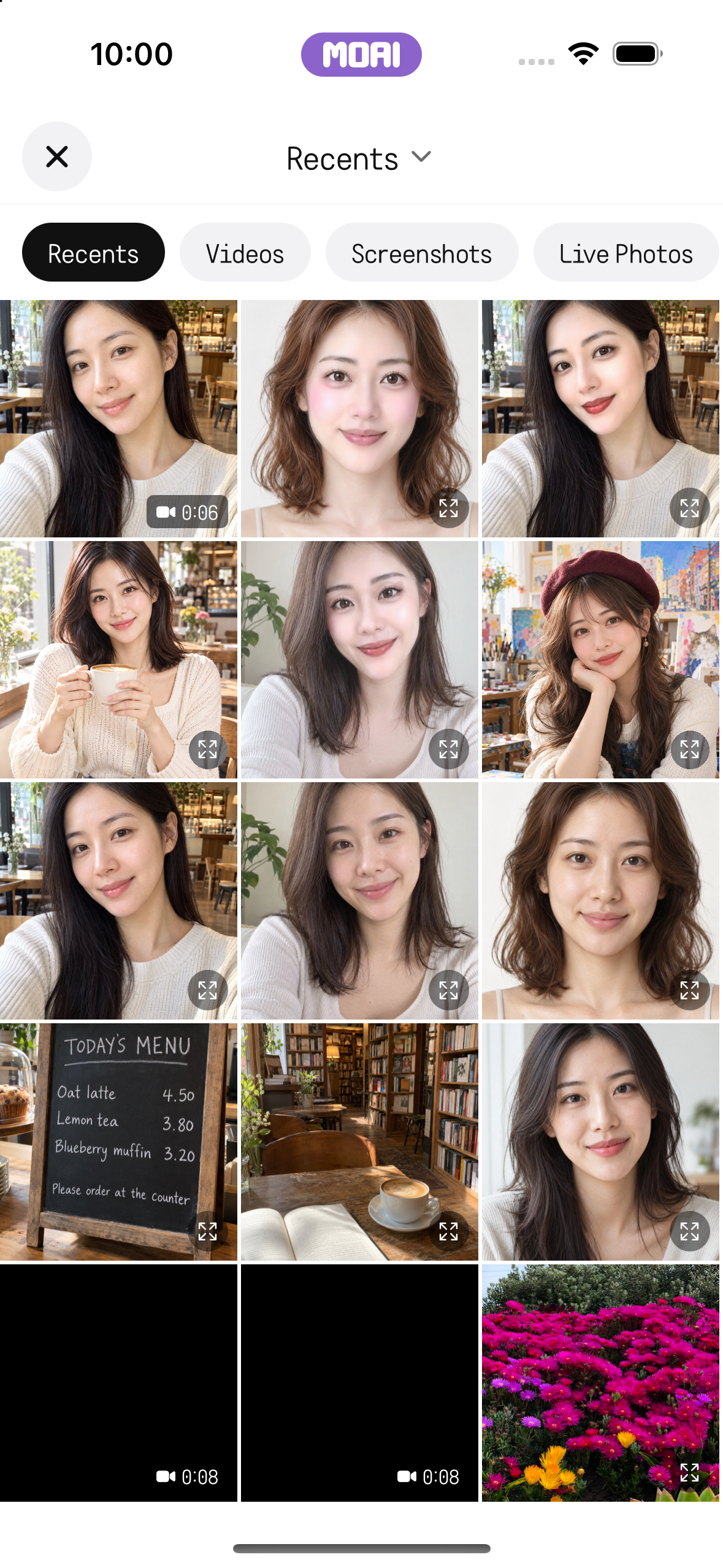
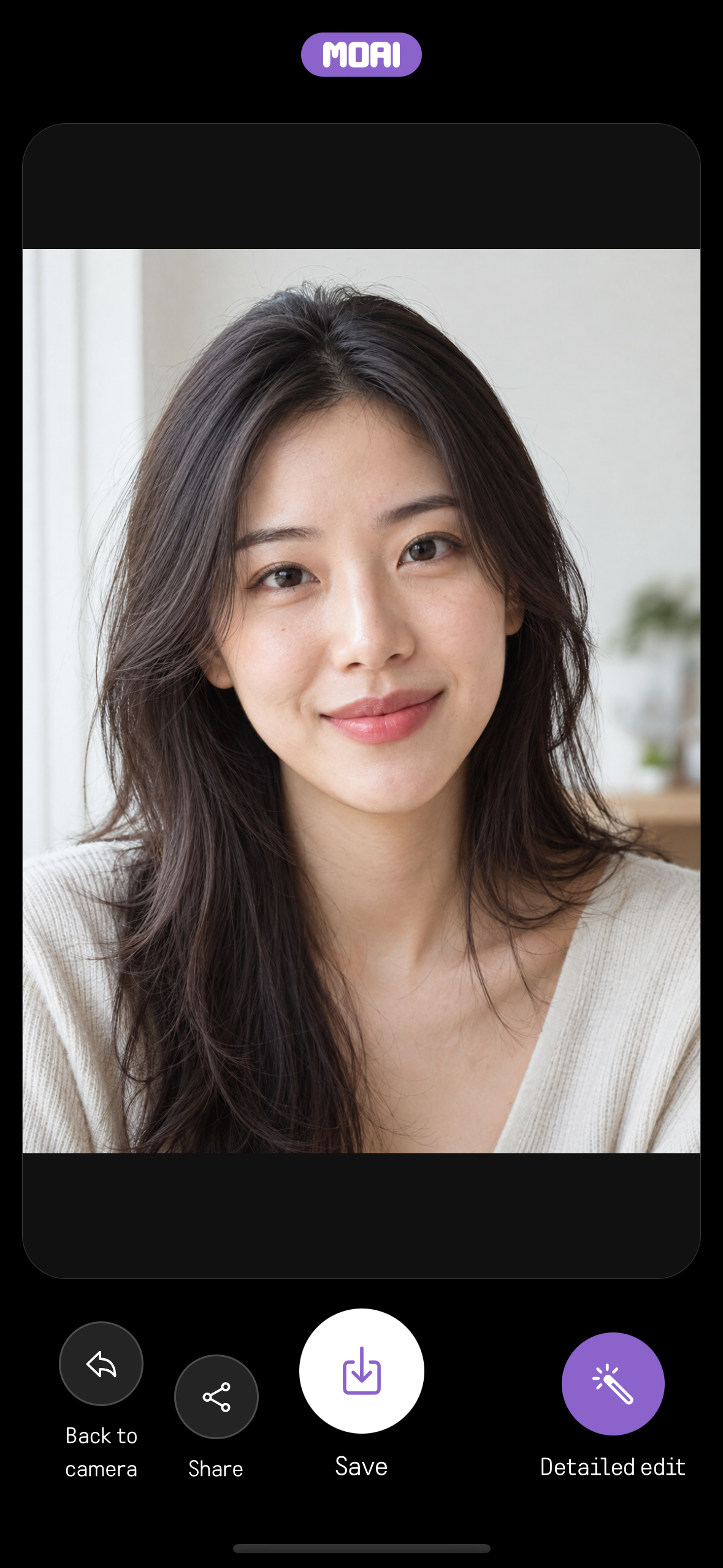
Open a photo from your album, reshape features, add makeup or a filter and save the edited image.
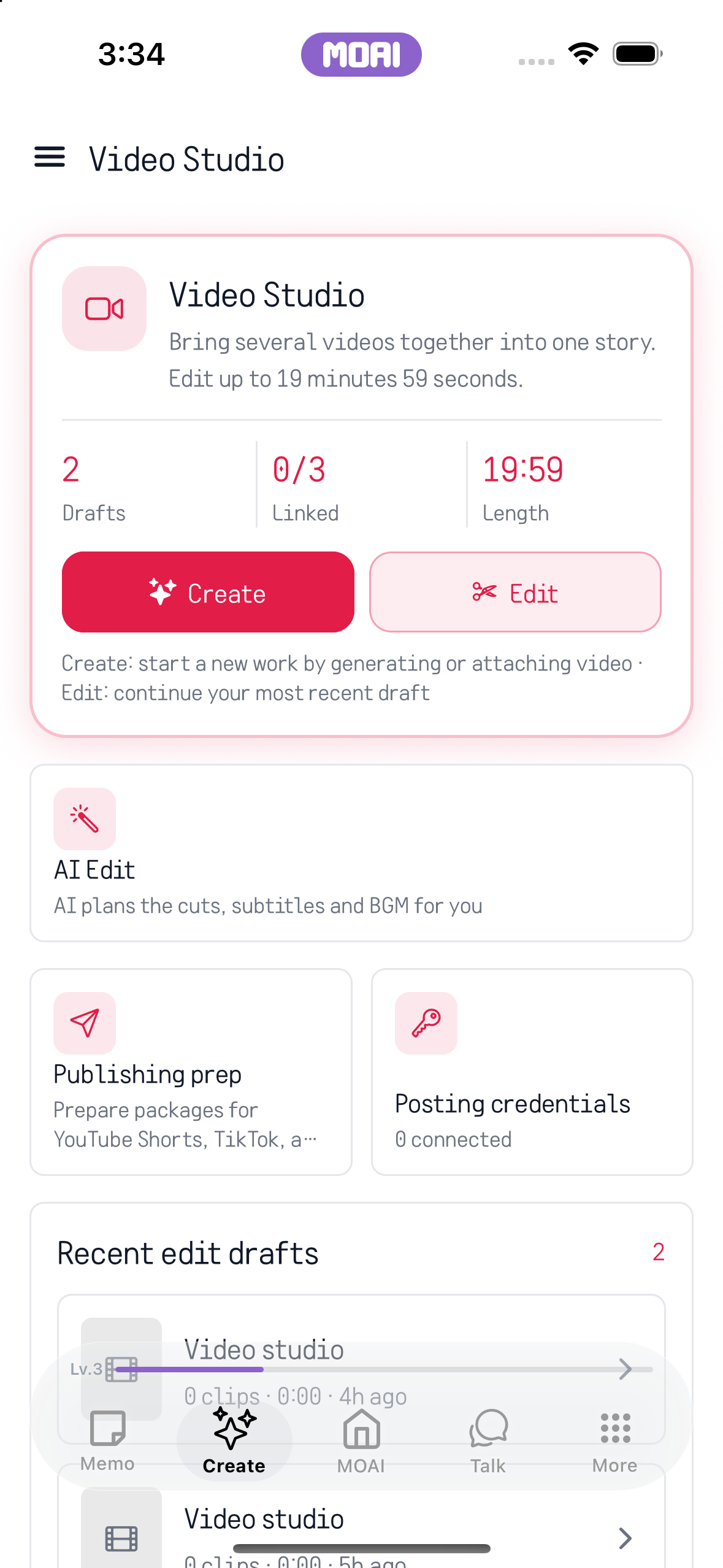
Import clips and edit them on the timeline with subtitles, music, mosaic and drawings, then export the video.
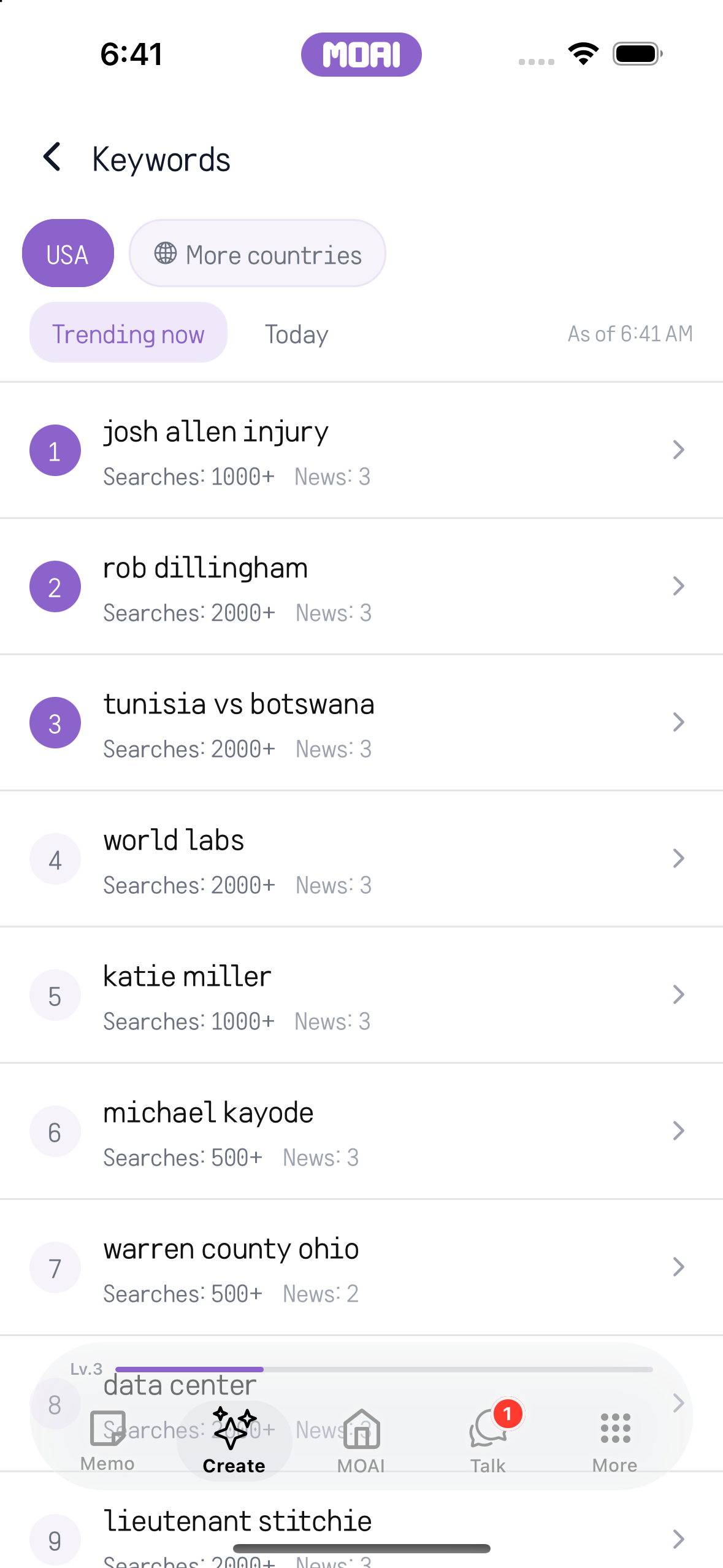
Choose a country, browse trending keywords and open a keyword to learn more.
Follow your curiosity.
MOAI Lens, a real-time conversation translator, Study, Music, Fortune and Love, all in one place.
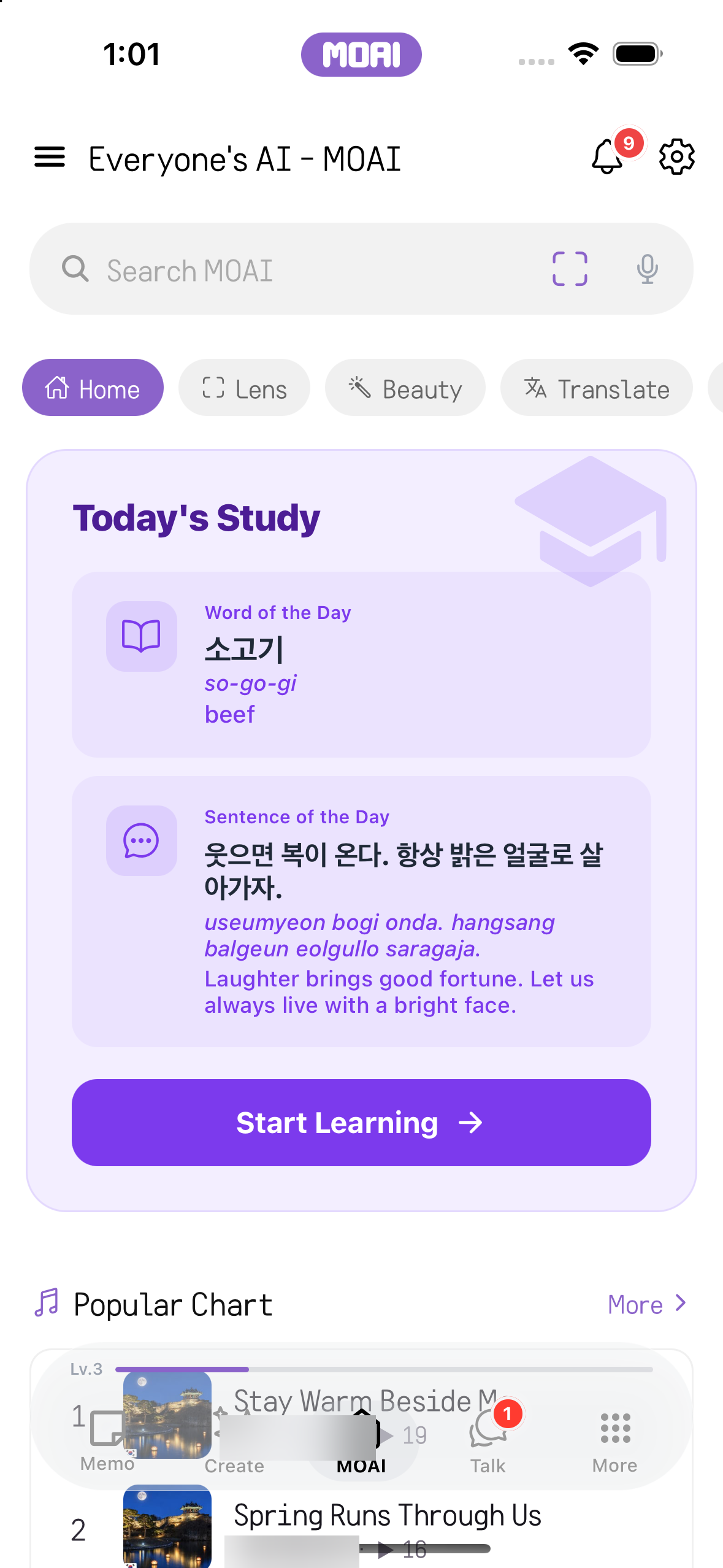
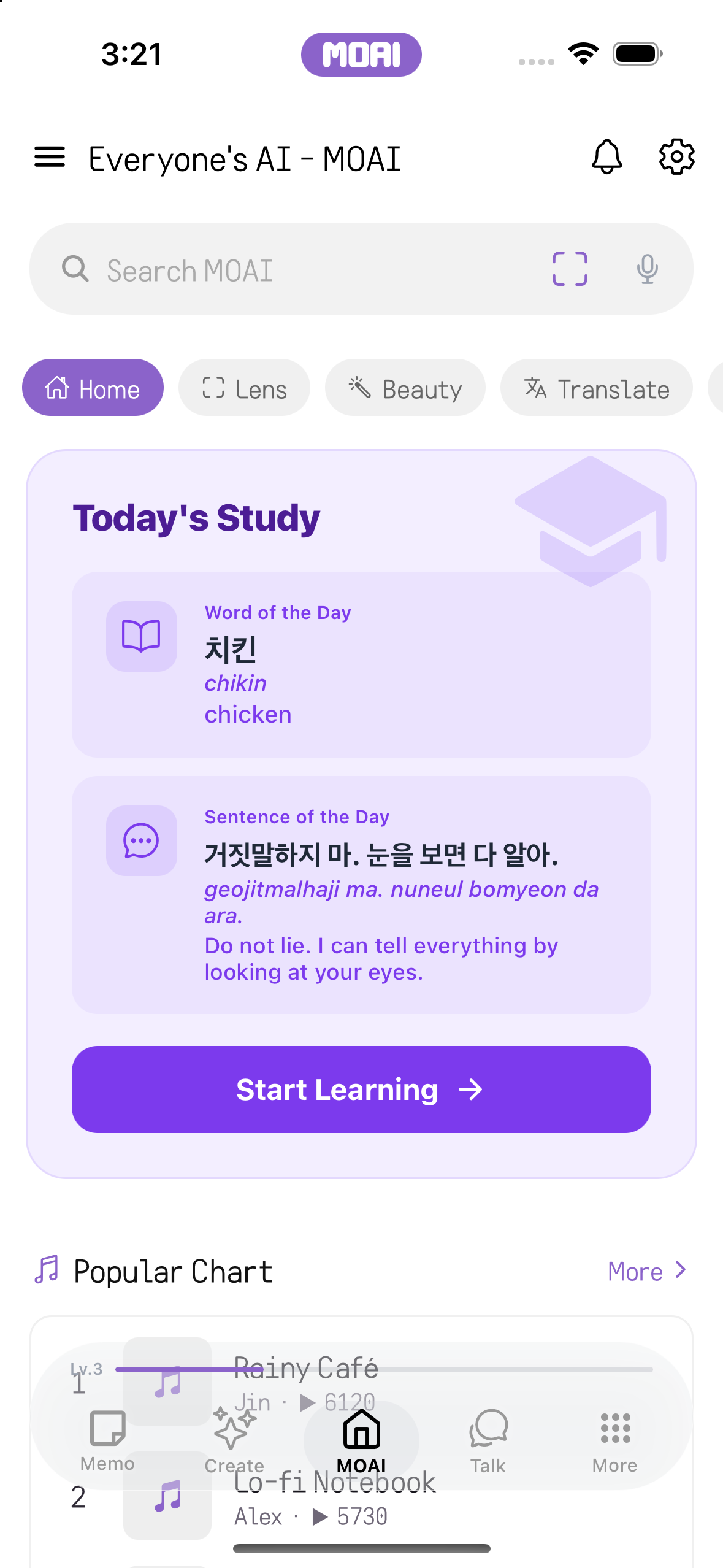
Use the quick menu to open a tool or explore the daily content.
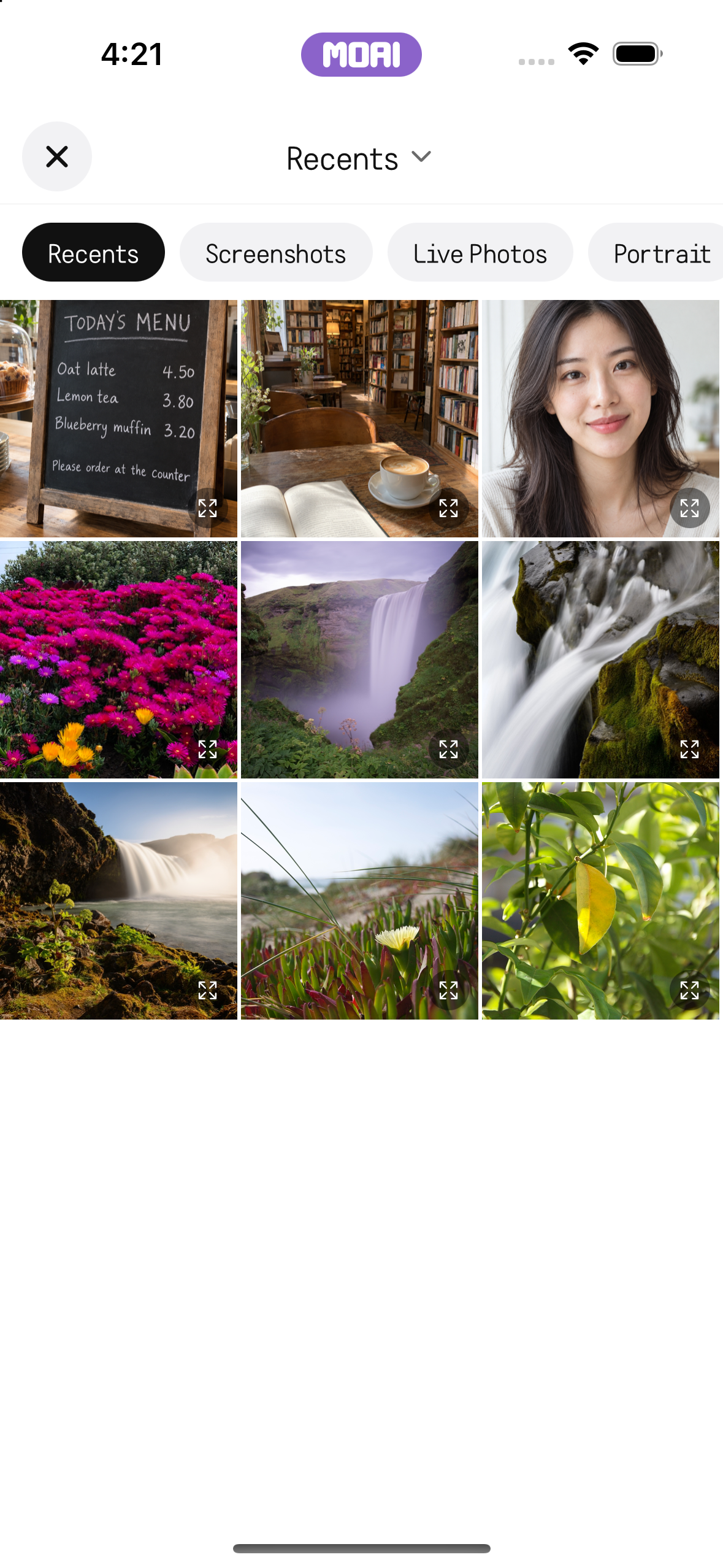
Take a photo or choose an image from your album, then ask the lens to analyse it.
Follow a conversation with the original words and their translation.
Choose the languages, enter your text and copy the translation.
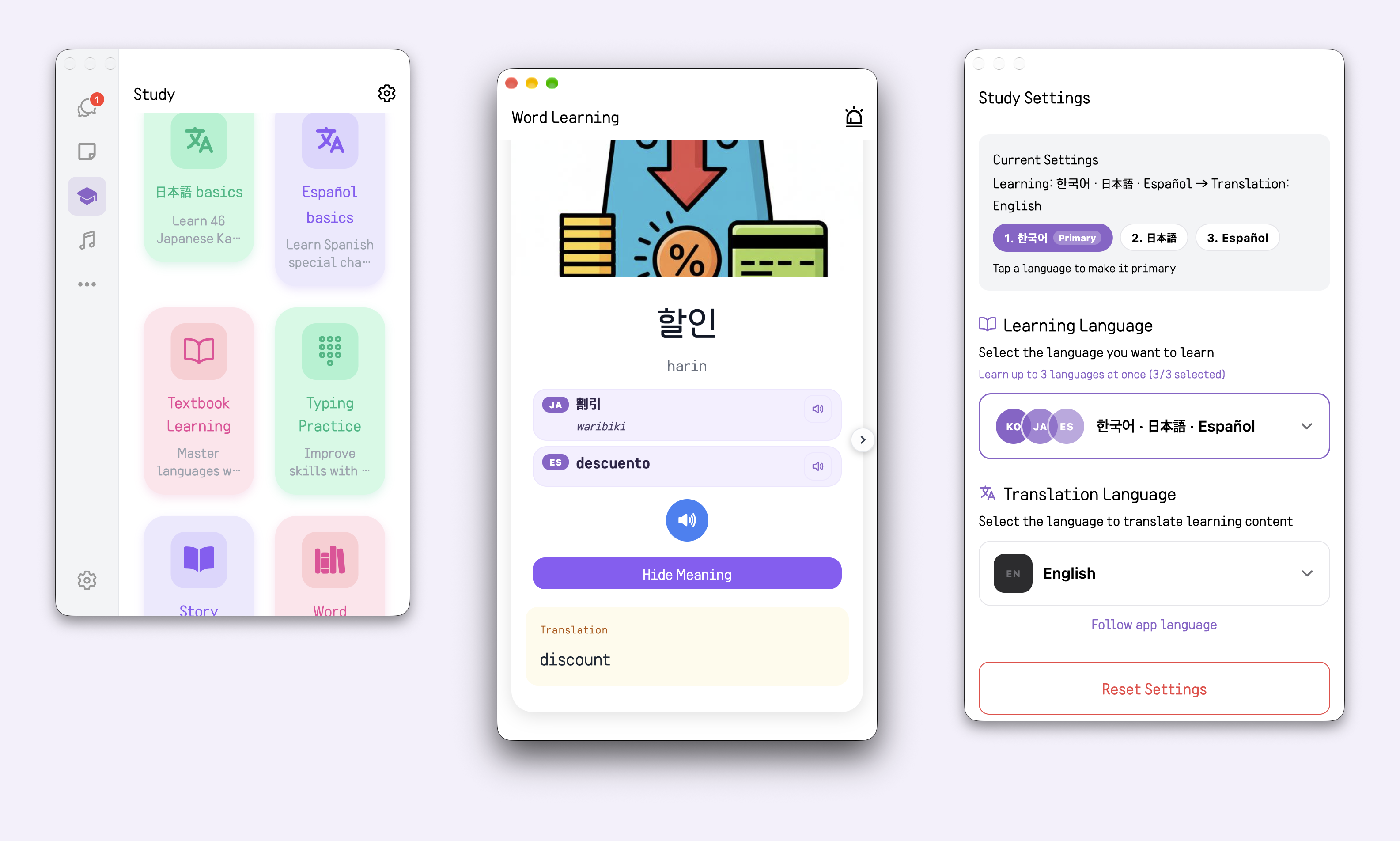
Choose a textbook and a unit. Work through vocabulary, dialogues, grammar and exercises, and follow your progress.
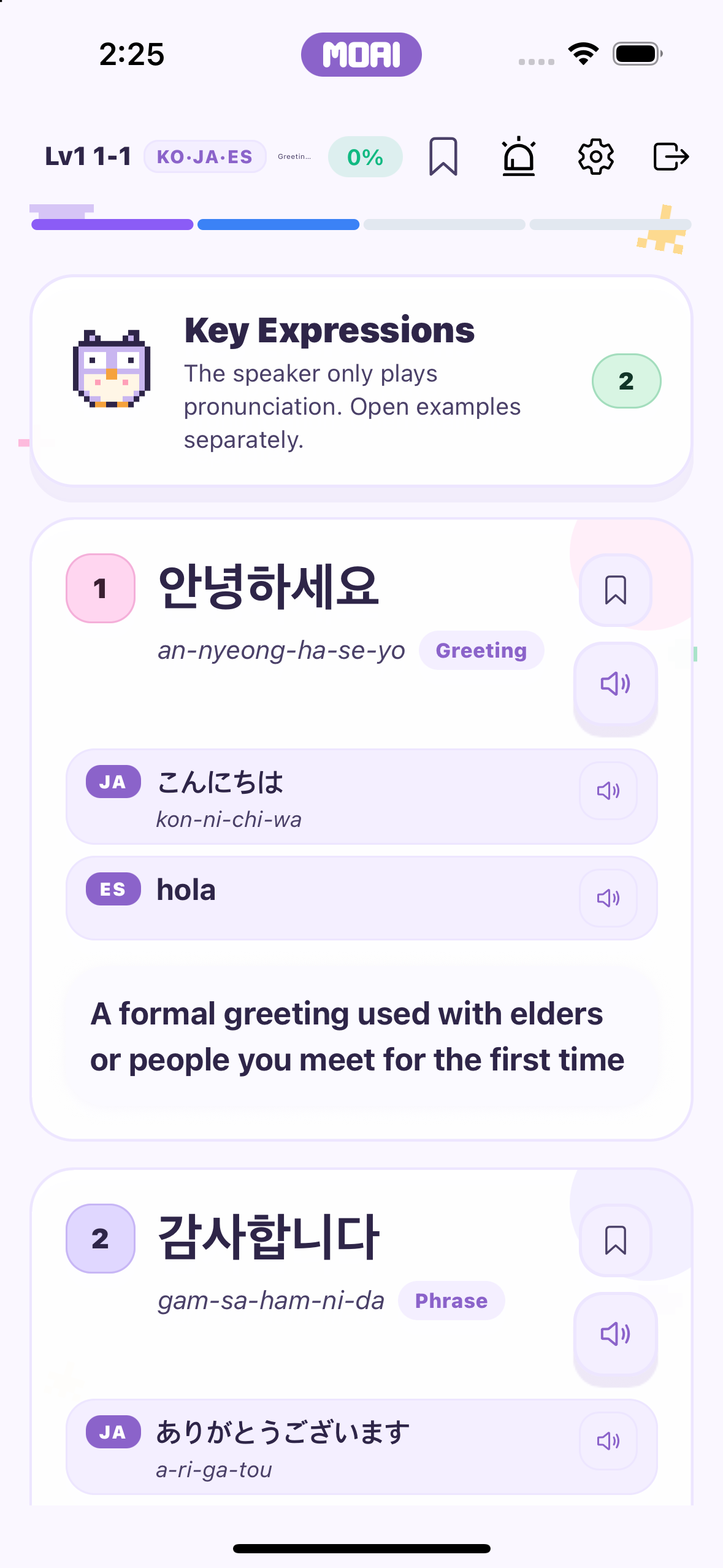
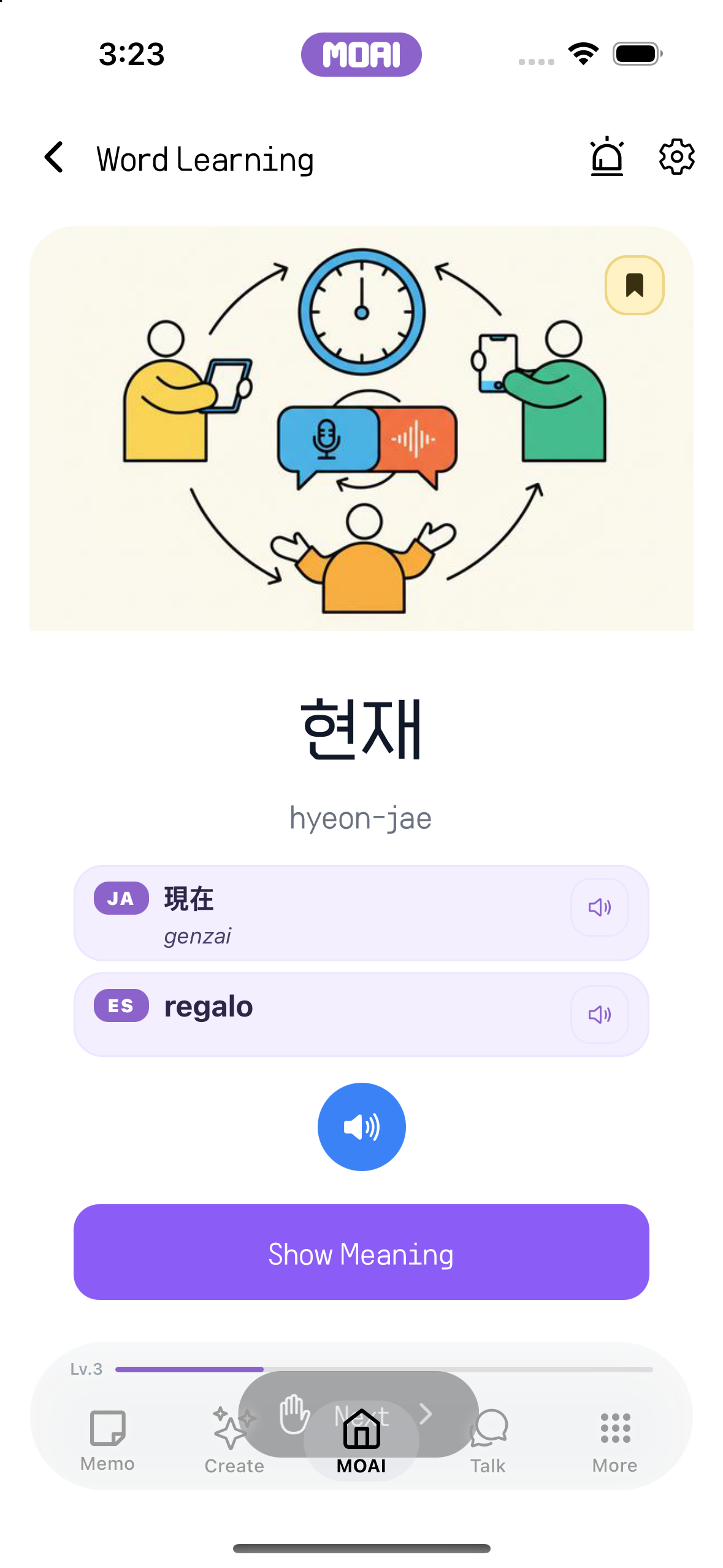
Bookmark words and practise with vocabulary quizzes.
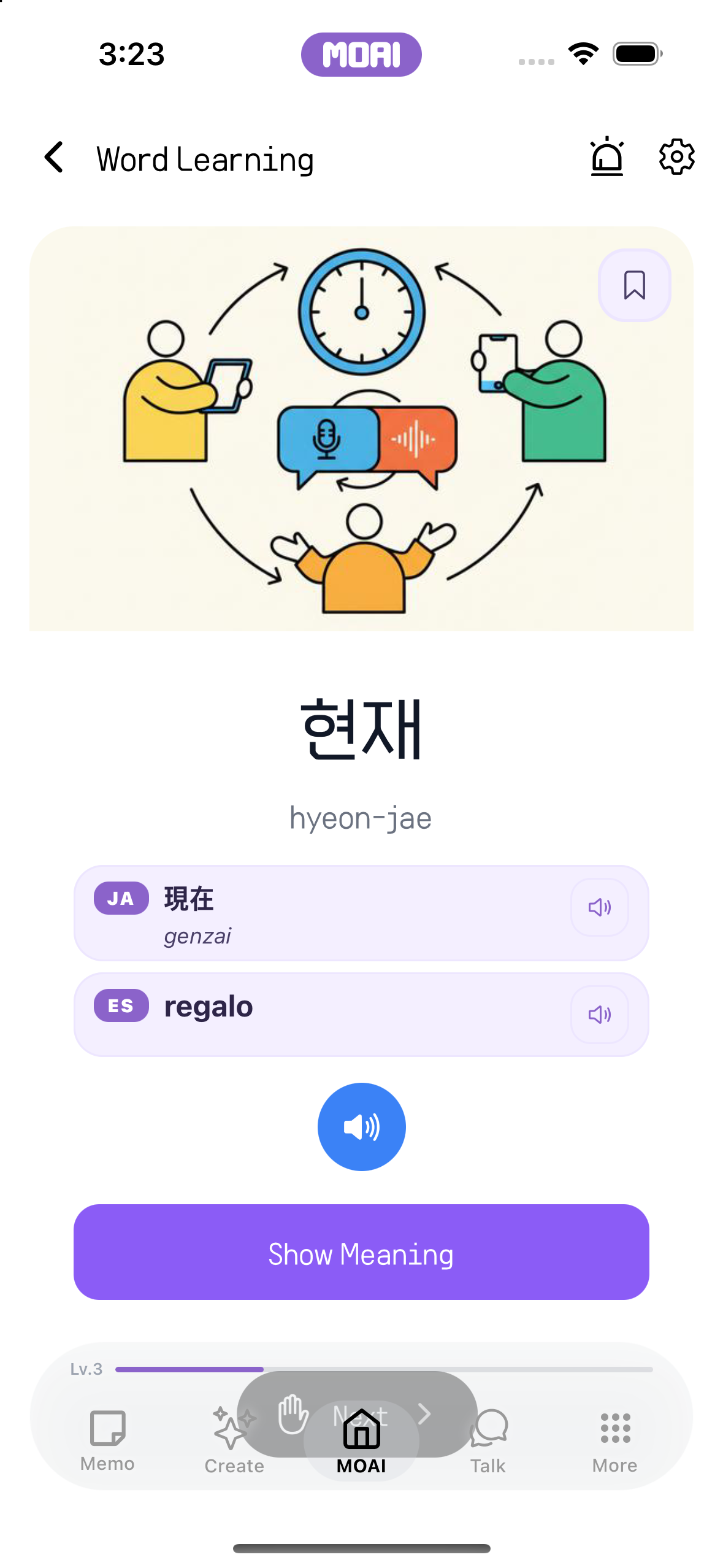
Study 31 languages. Learn each language's basic characters with the sound of every letter: Hangul consonants and vowels, hiragana and katakana, Cyrillic, Arabic script and more.
Connect a word with an image and listen to its pronunciation.
Practise recognising and using numbers in the language you are learning.
Read a story and explore the vocabulary along the way.
Practise typing and review your result after each session.
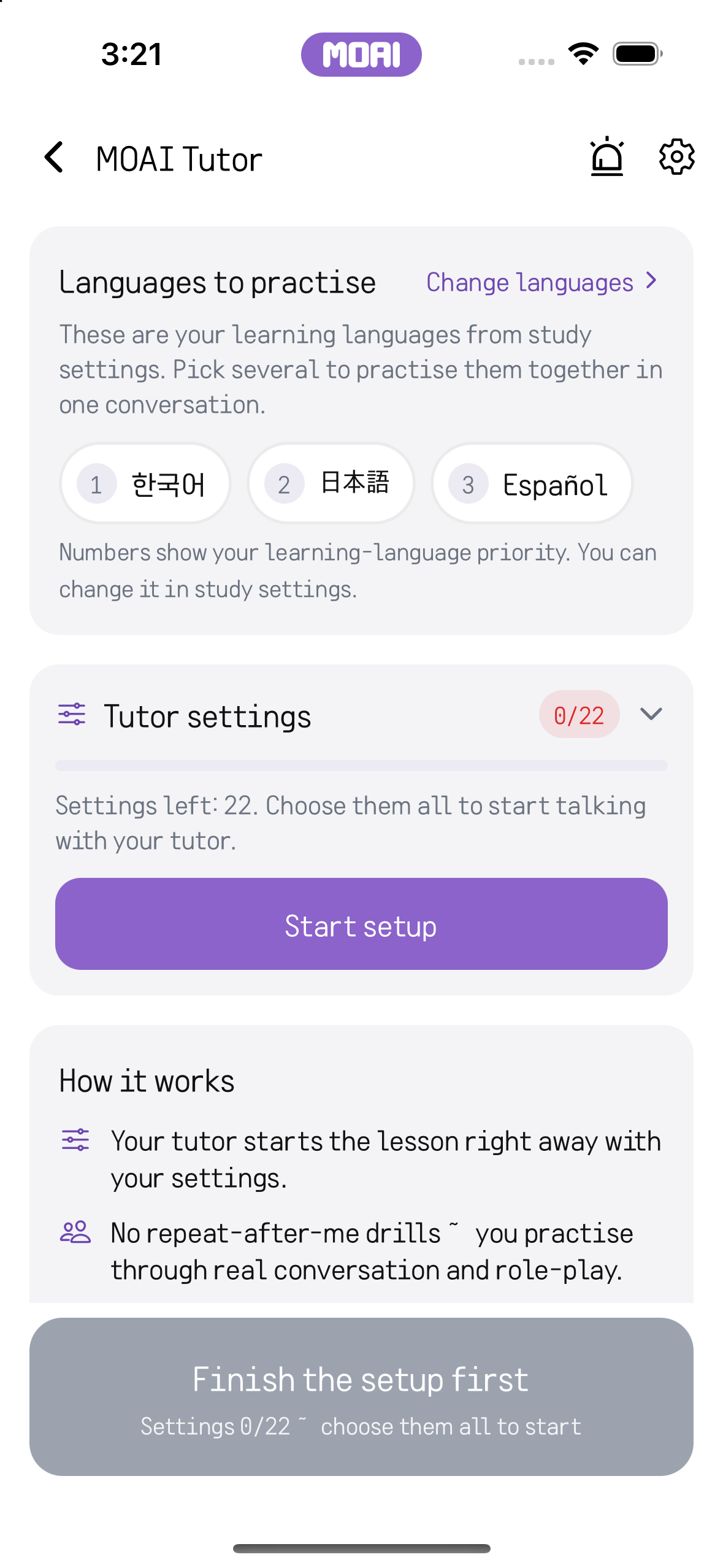
Practise a conversation through the real-time voice study experience.
Browse new tracks, search for music and open a track to listen.
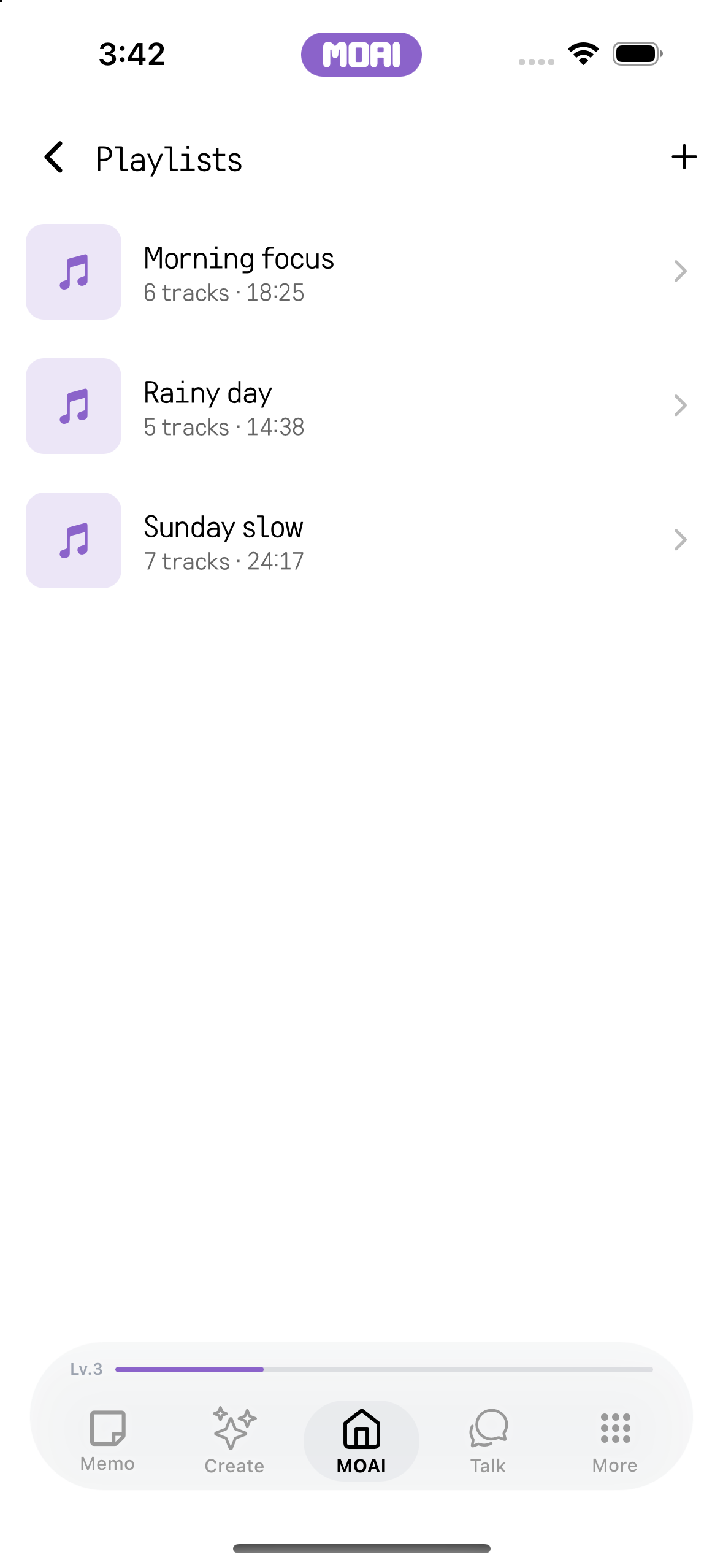
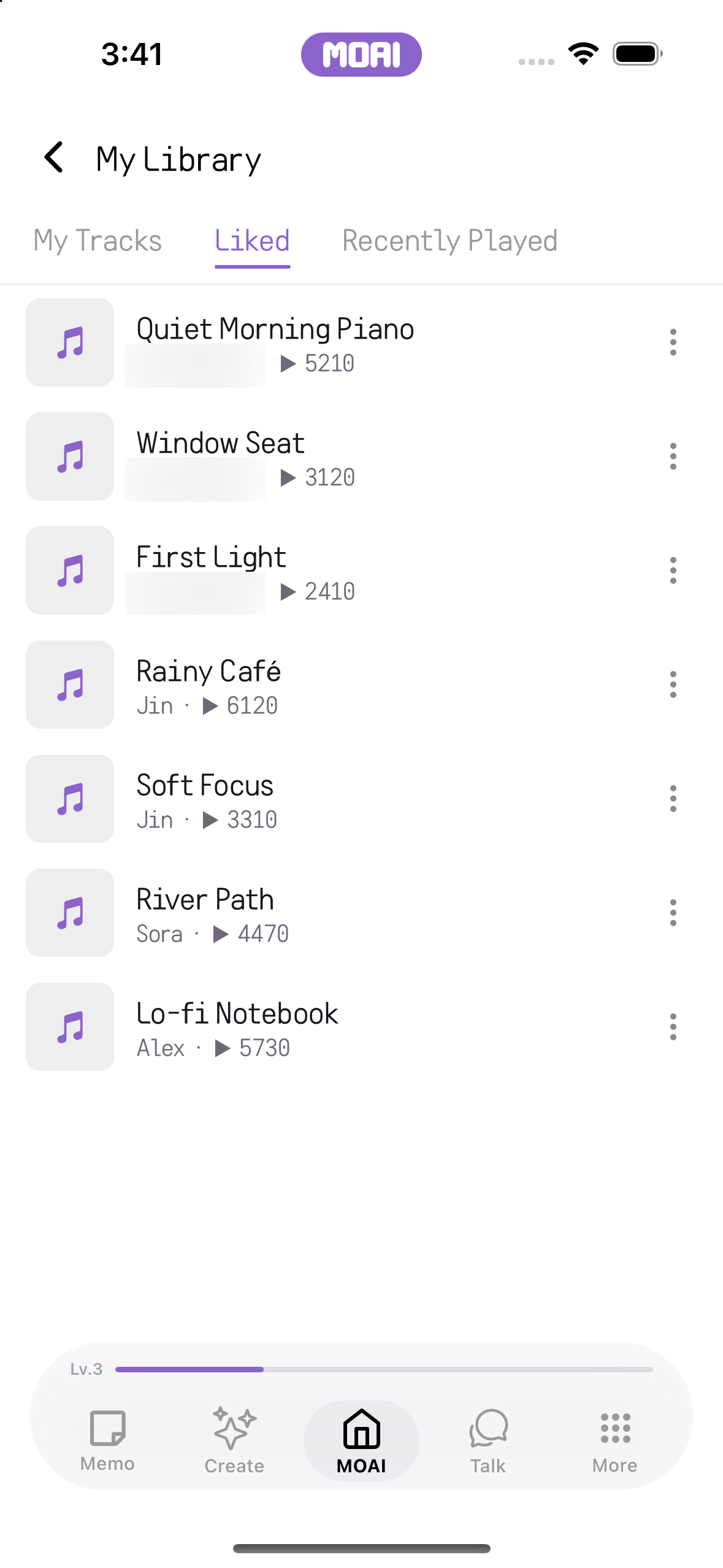
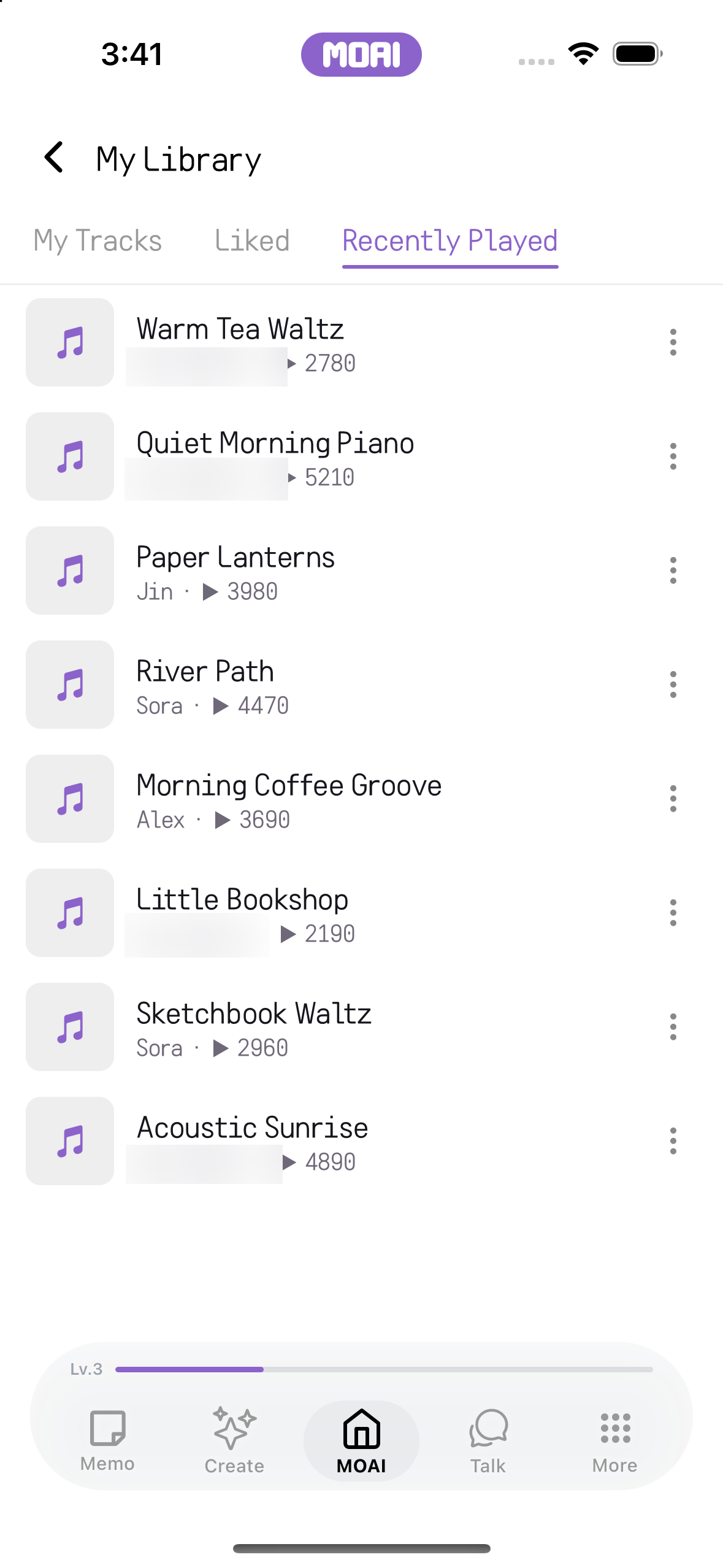
Play music, make a playlist and return to favourites and listening history.
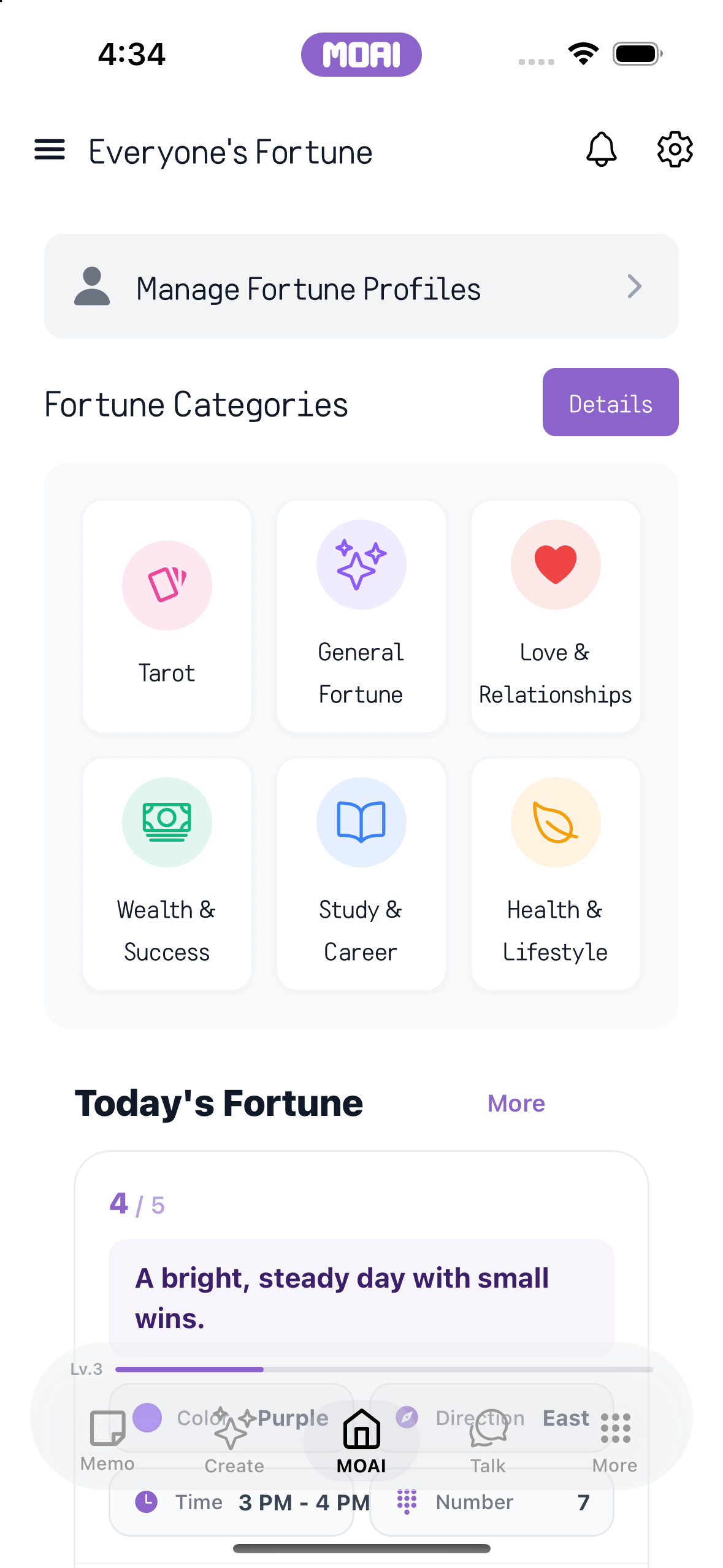
Choose a reading, enter the requested details and explore the result.
Explore the relationship tools, provide the requested information and review the result.
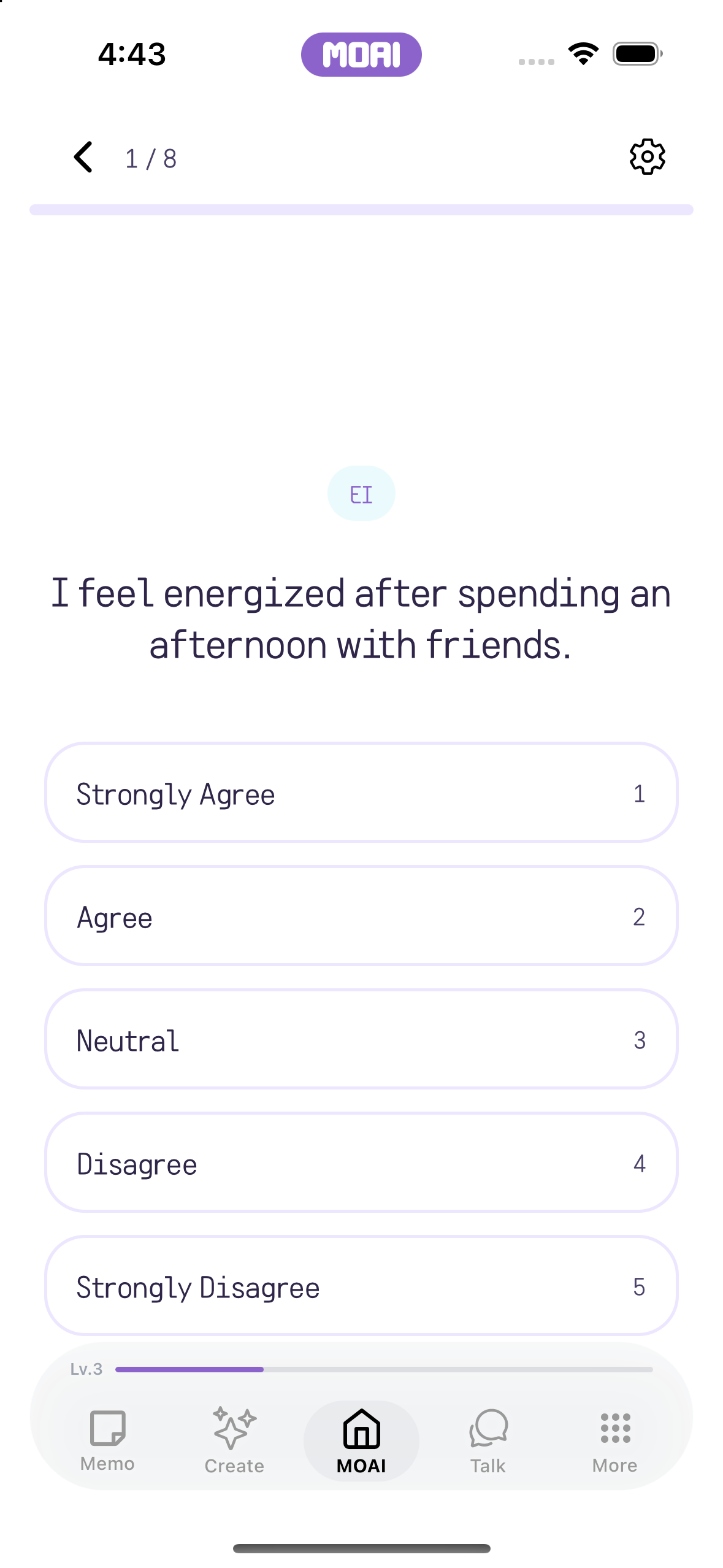
Keep the conversation going.
Get closer to people through messages, calls, channels and shared stories, and update your profile to try a language exchange with someone of the opposite sex.
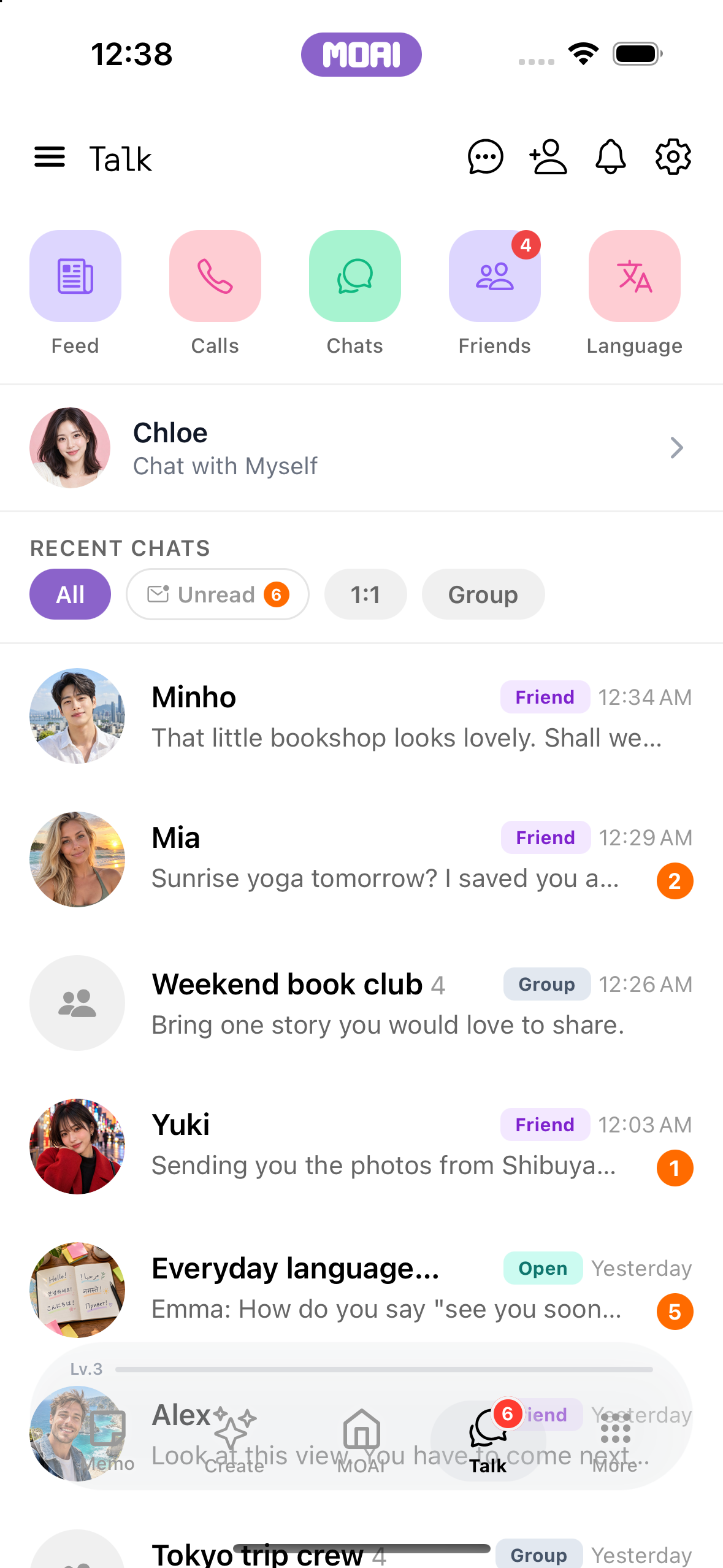
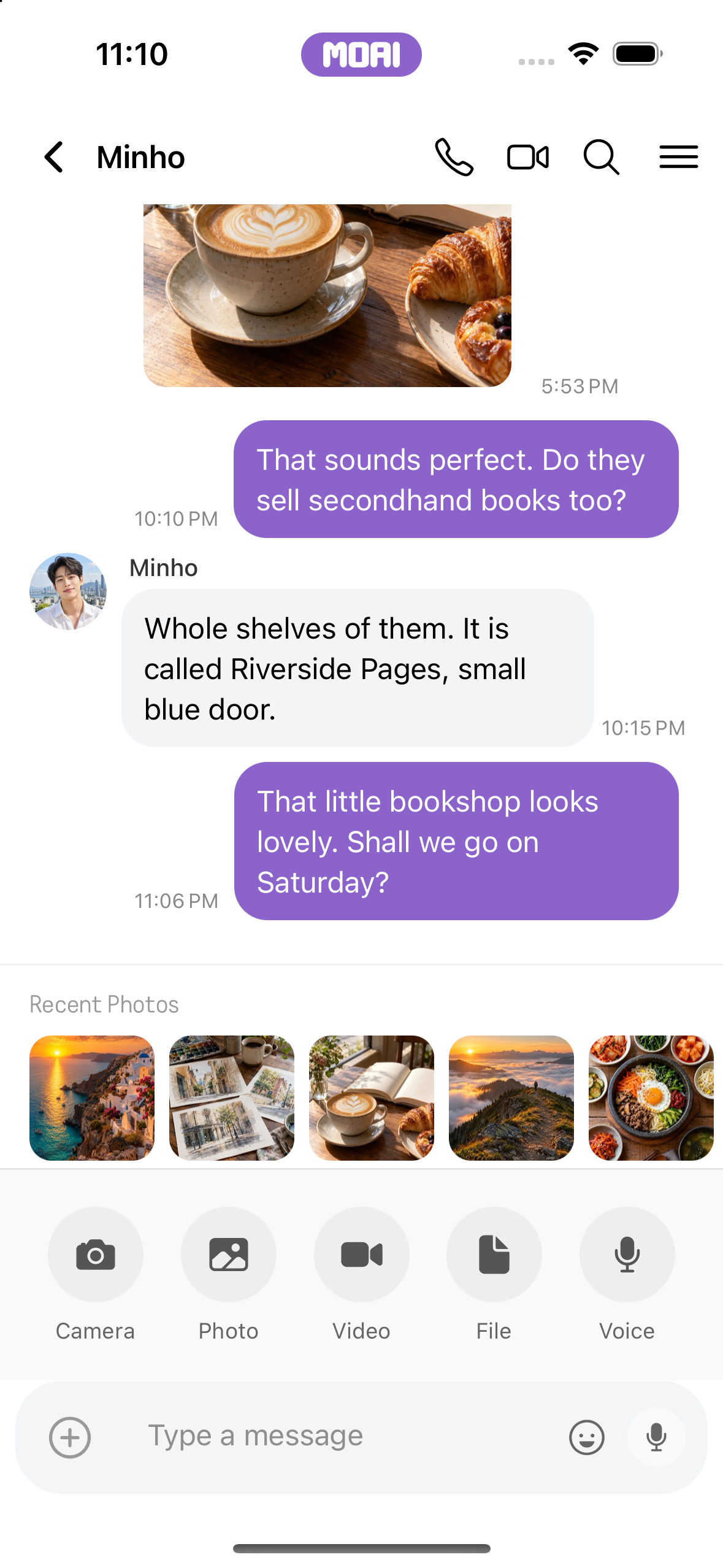
Send messages and attachments, react, edit and translate within a conversation.
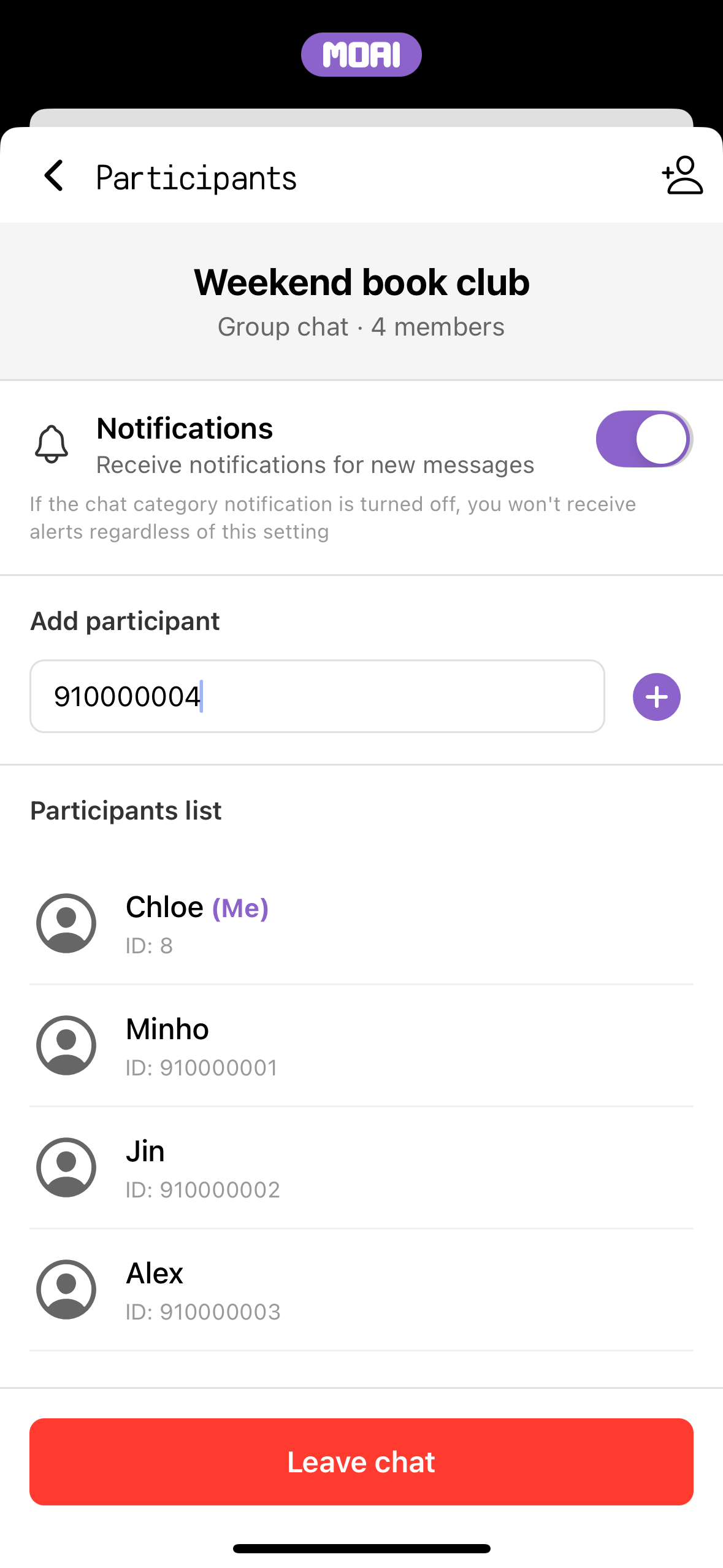
Create a group, invite people and manage its participants.
Add friends, open profiles and organise your connections into folders.
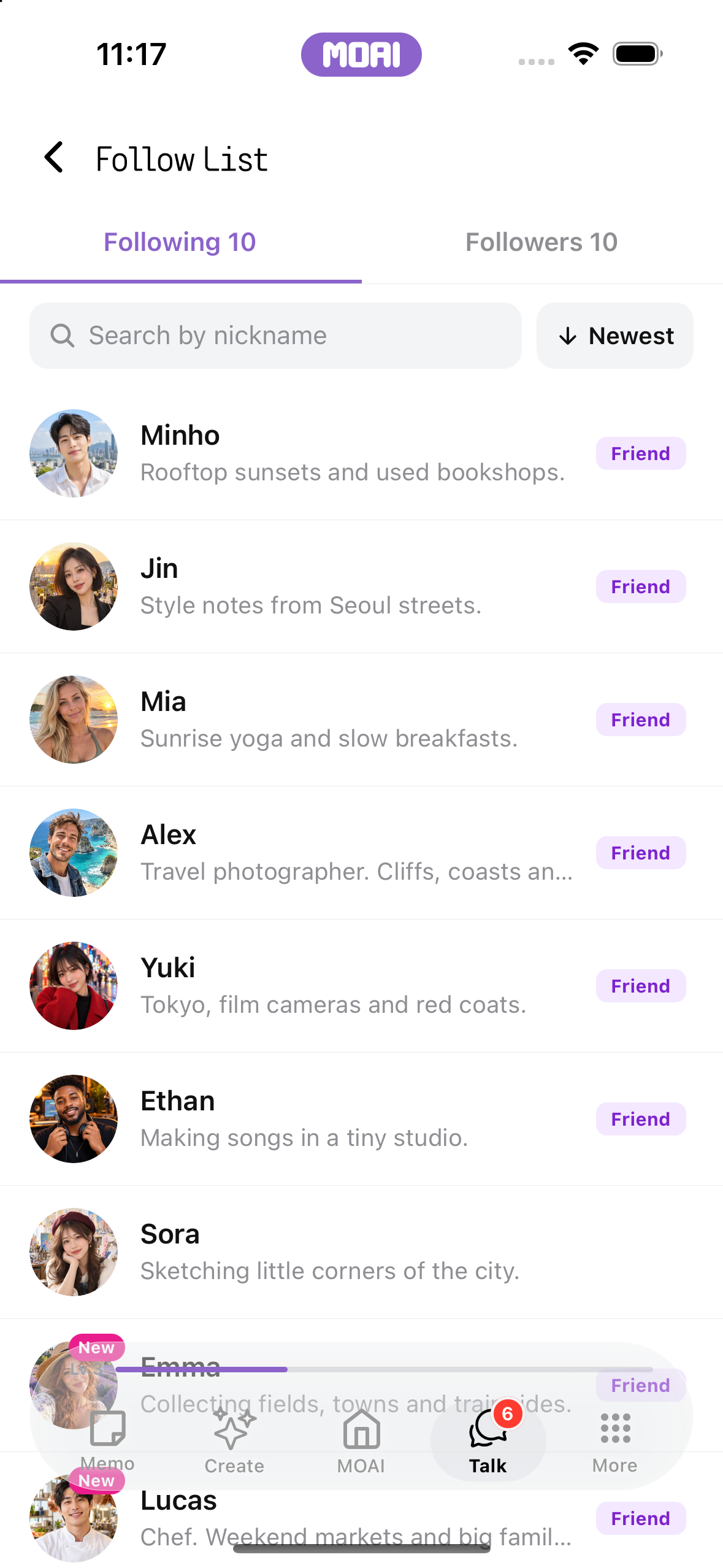

Start a voice or video call, use translation and return to your call history.

Discover a channel, join its conversation or create a channel of your own.
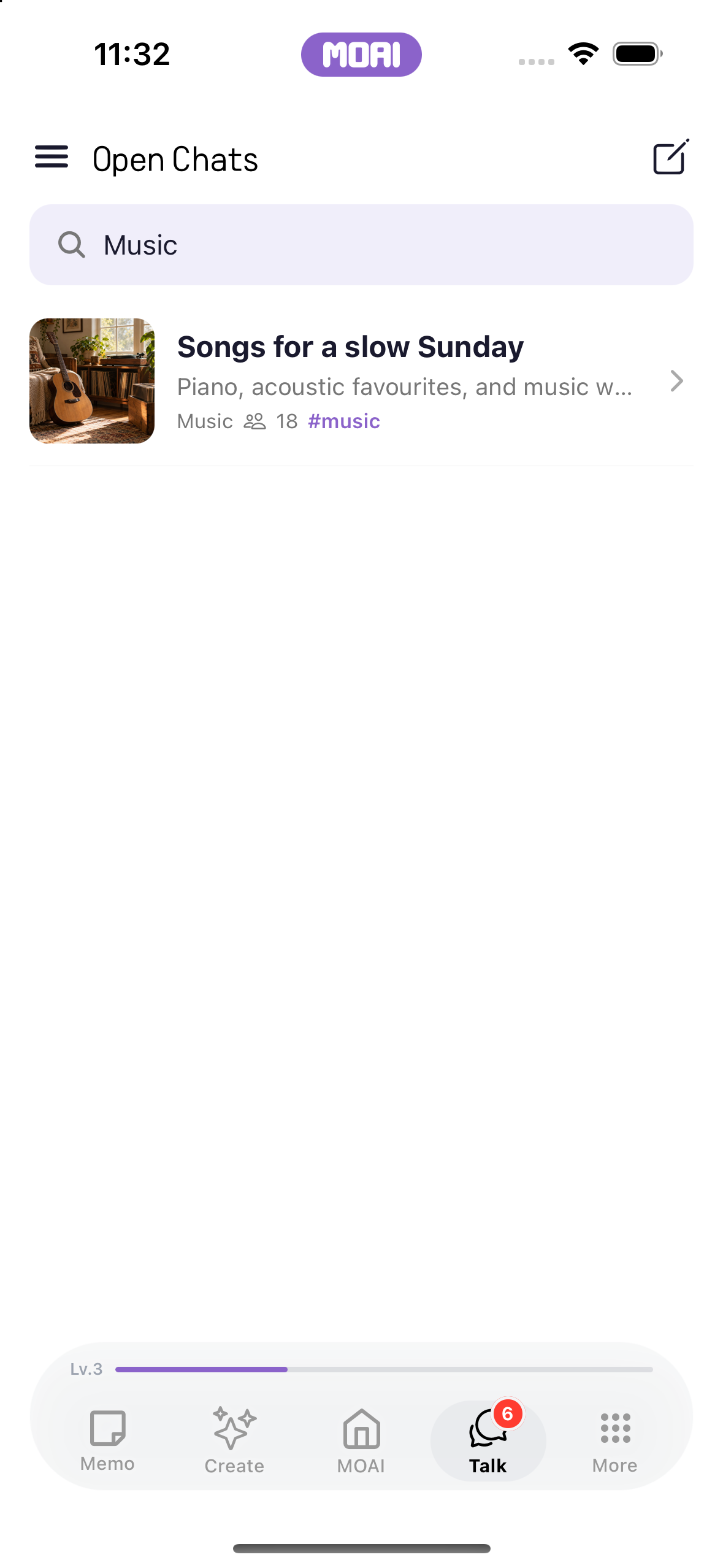
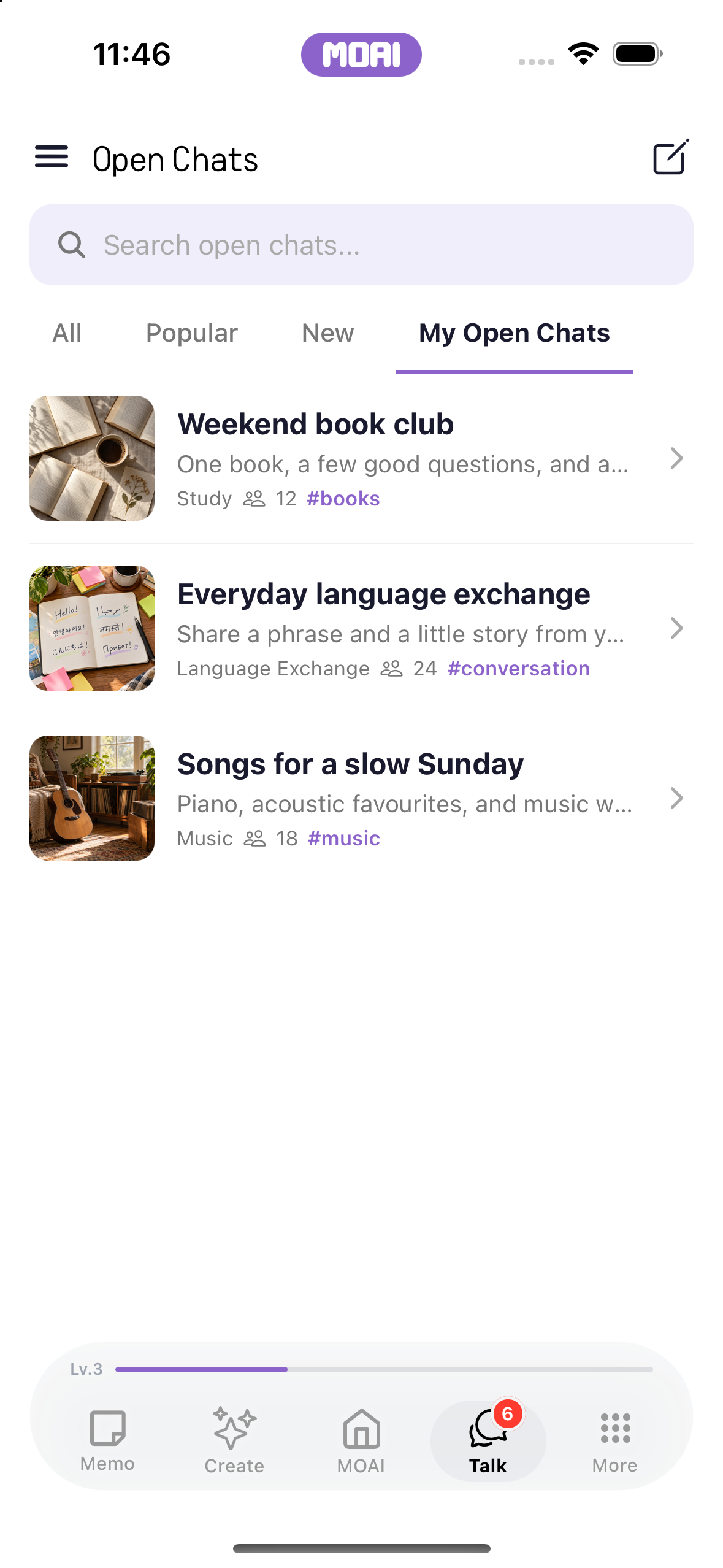
Start a matching session and connect with someone new.
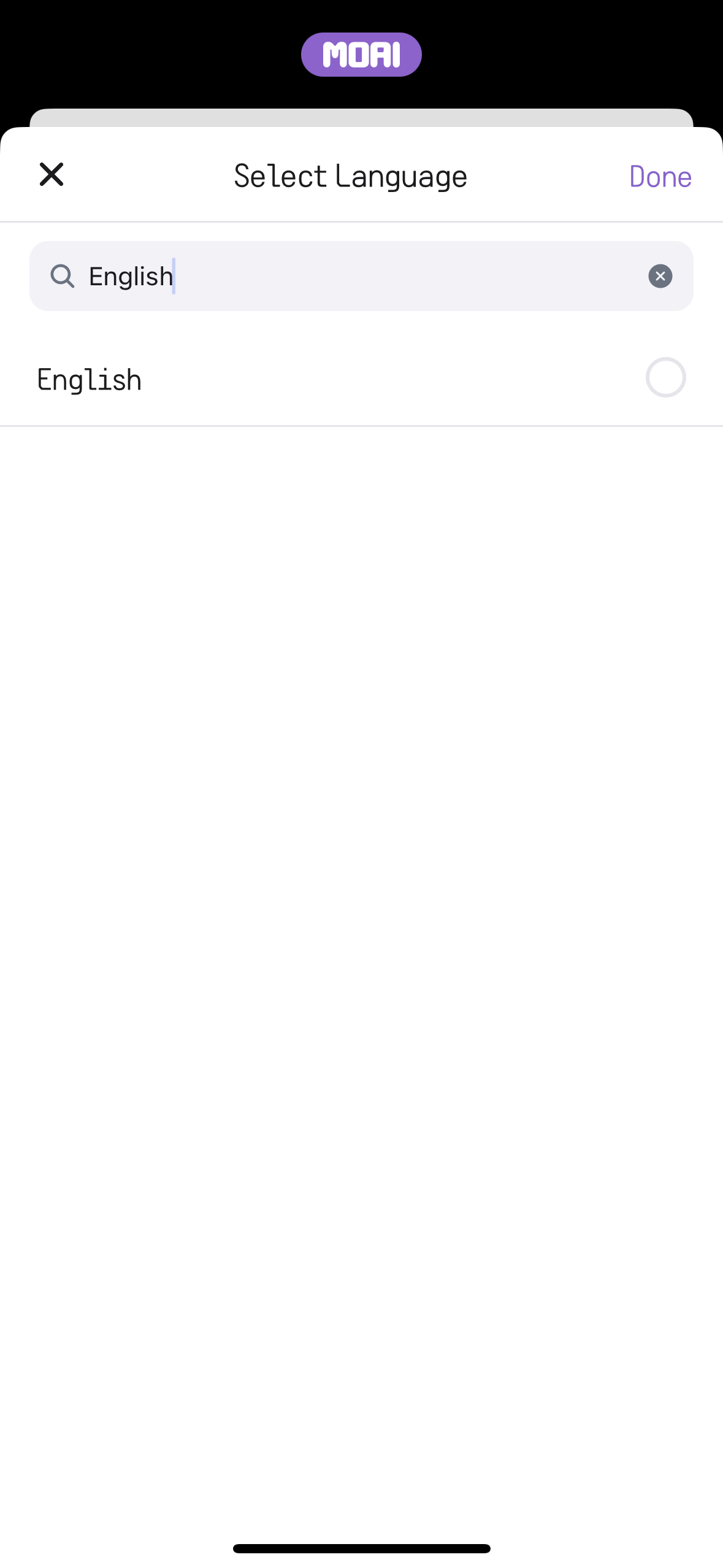
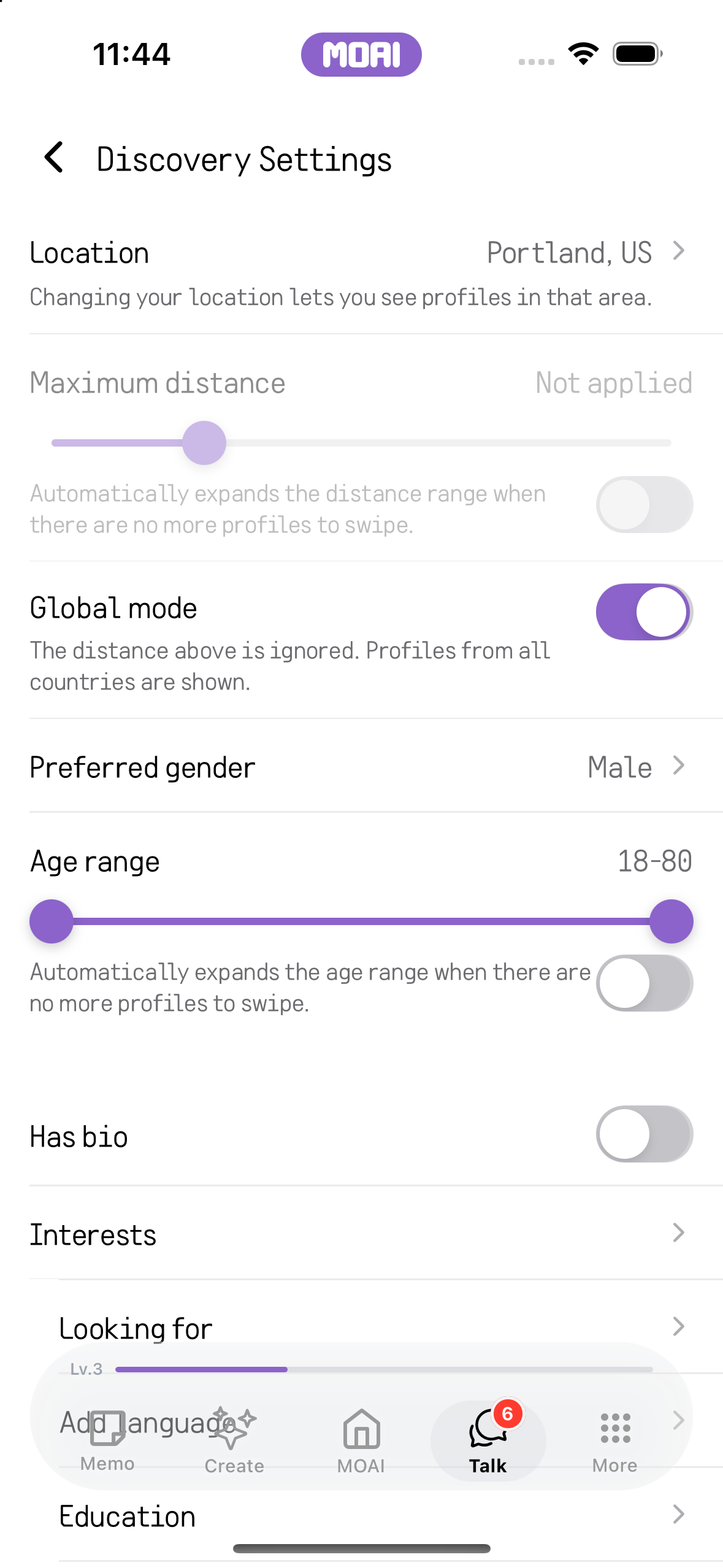
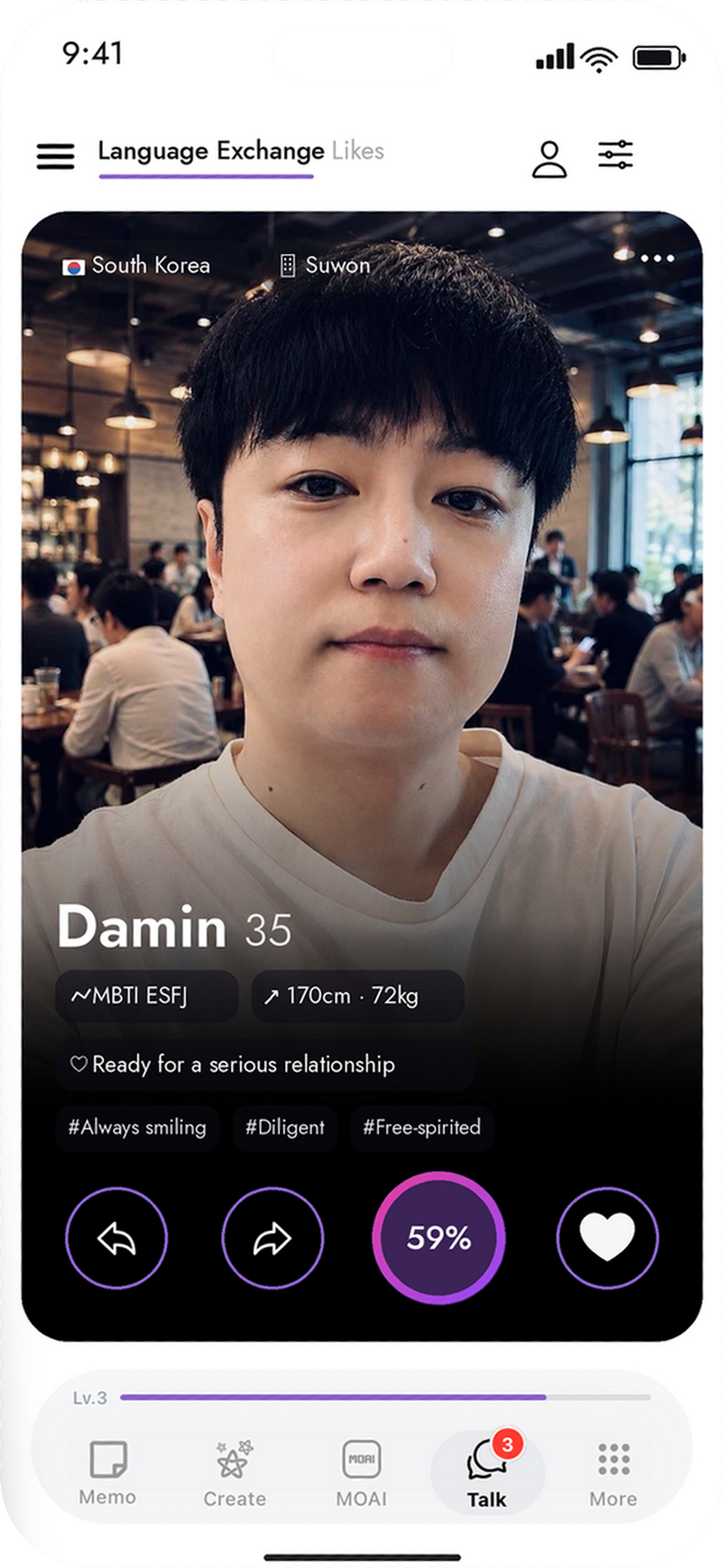
Set your profile and preferences, find a match and practise through conversation.
Explore agents, create a custom agent and start a conversation.
Explore stories, blog posts and places in the feed.

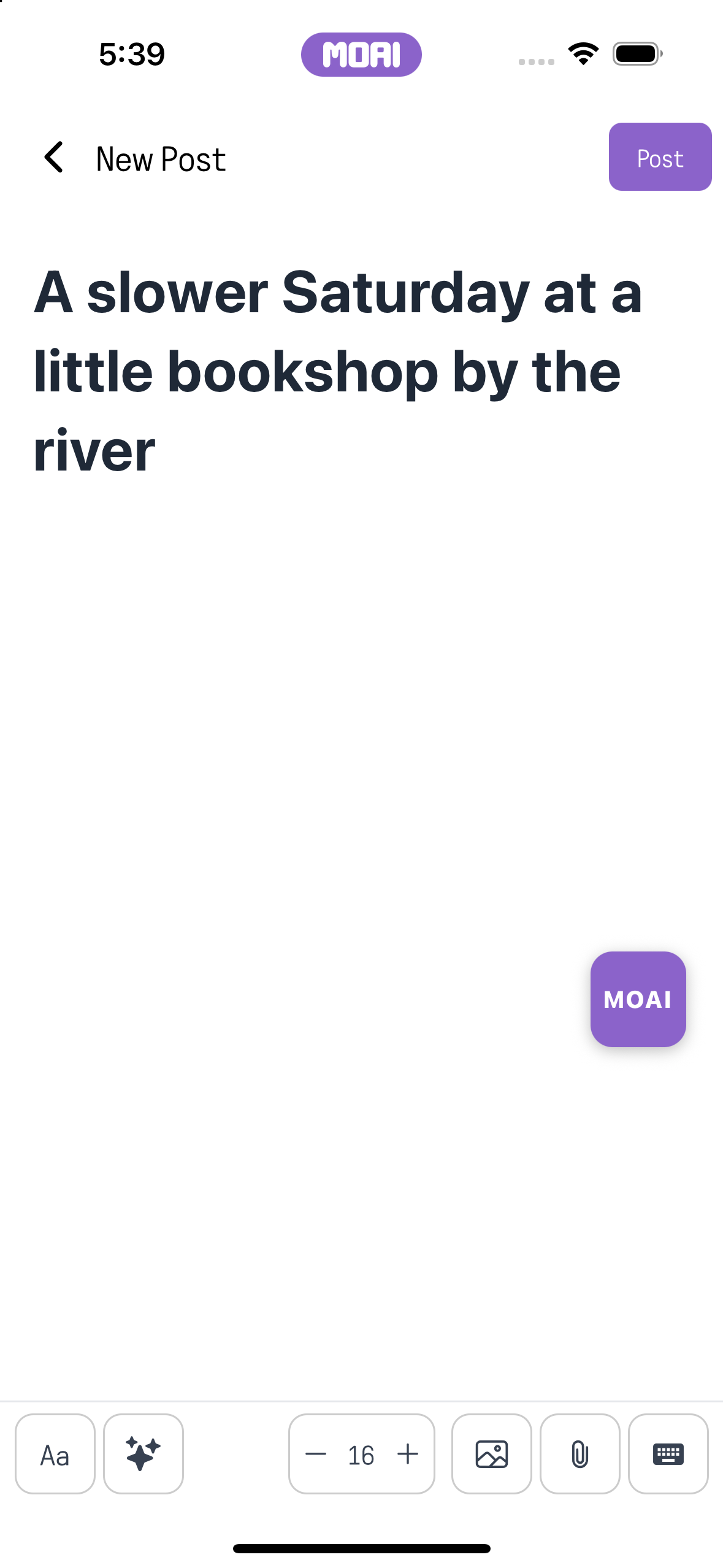
Compose a post, add media and return to your published activity.
Comment, like or translate a post, and report content when needed.
Draw, edit videos, search notes and chat on a larger screen.
Find a note with search and filters for different kinds of content.
Choose a brush, draw on the canvas and save your work in the gallery.
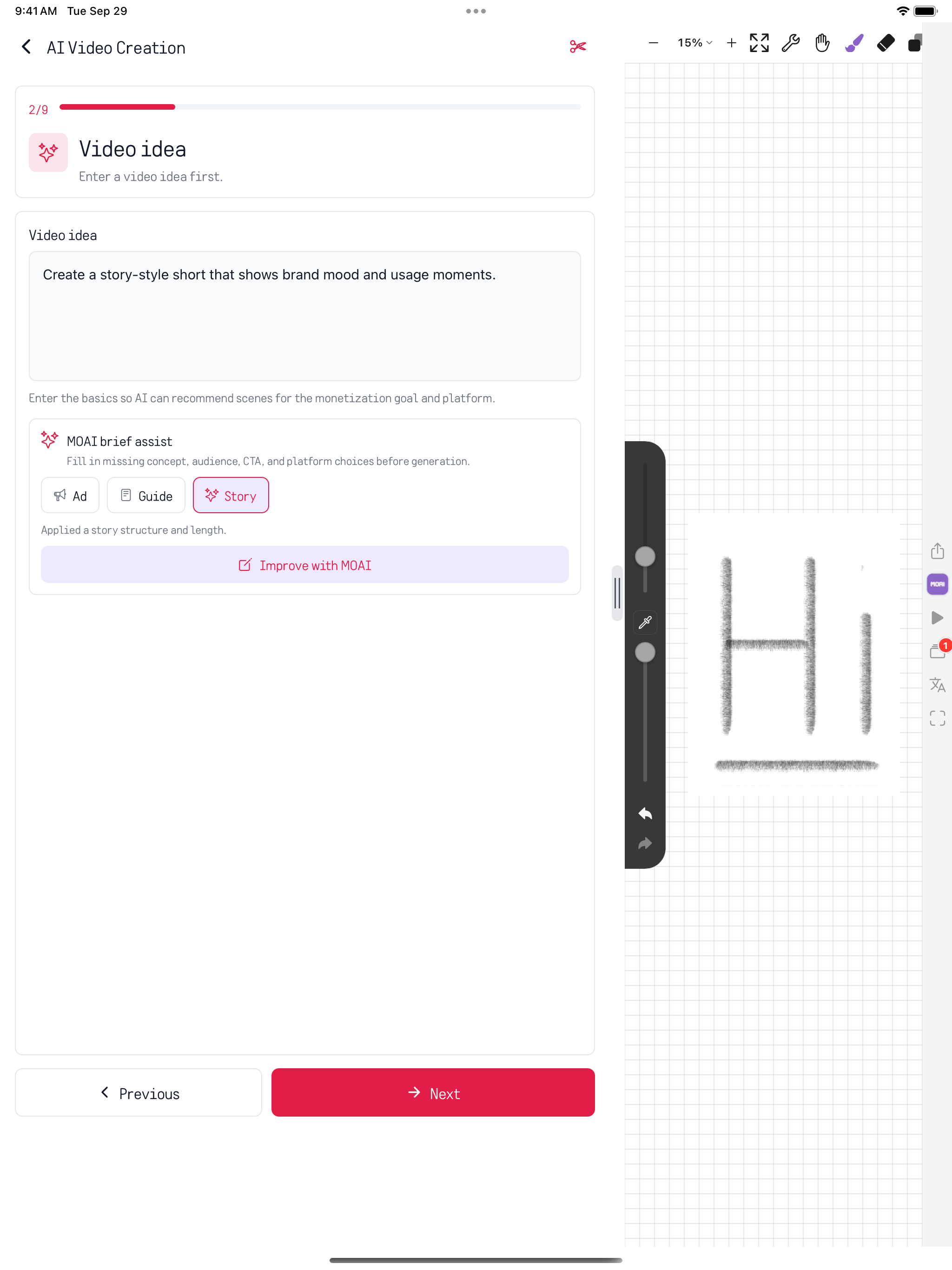
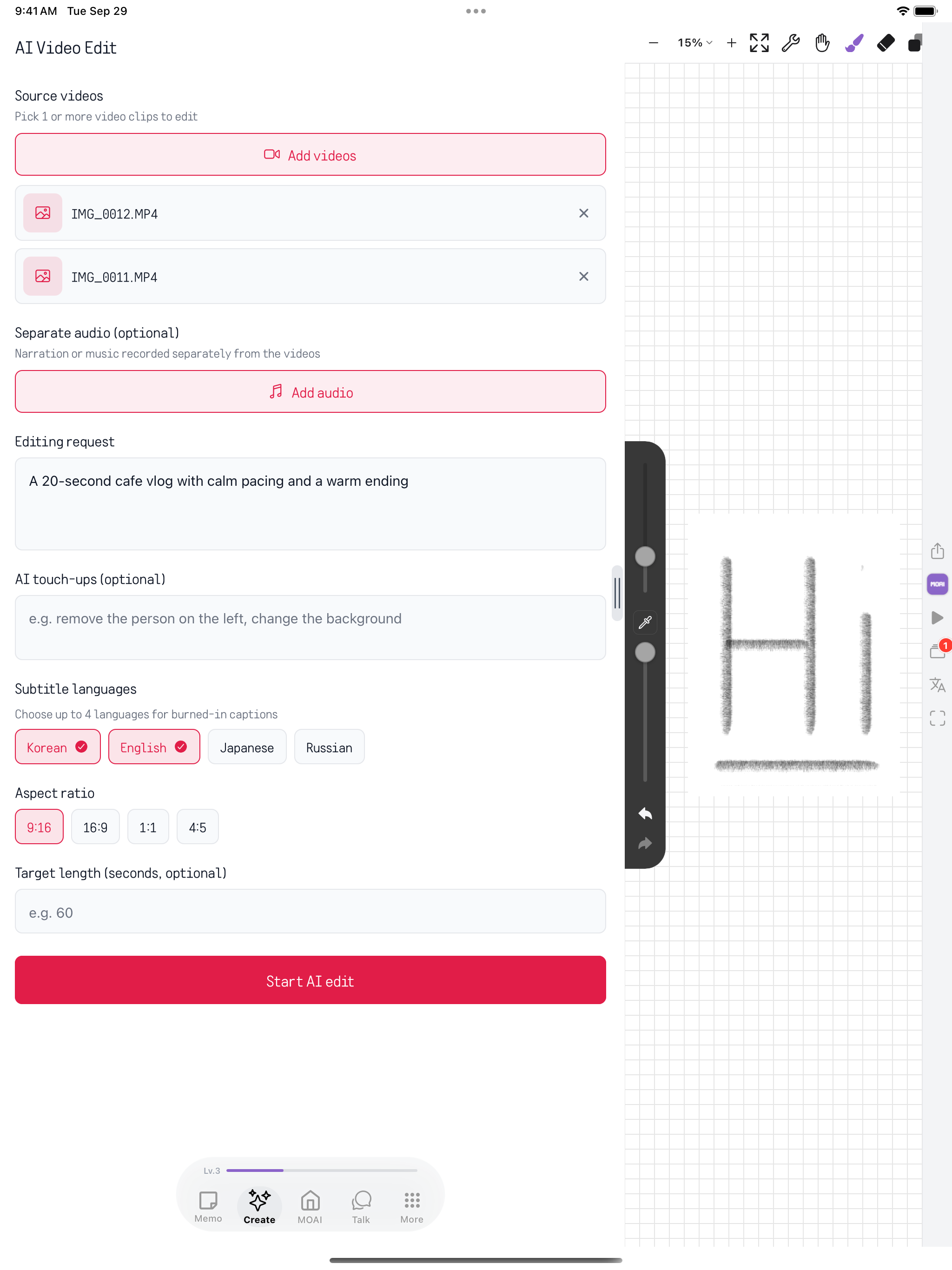
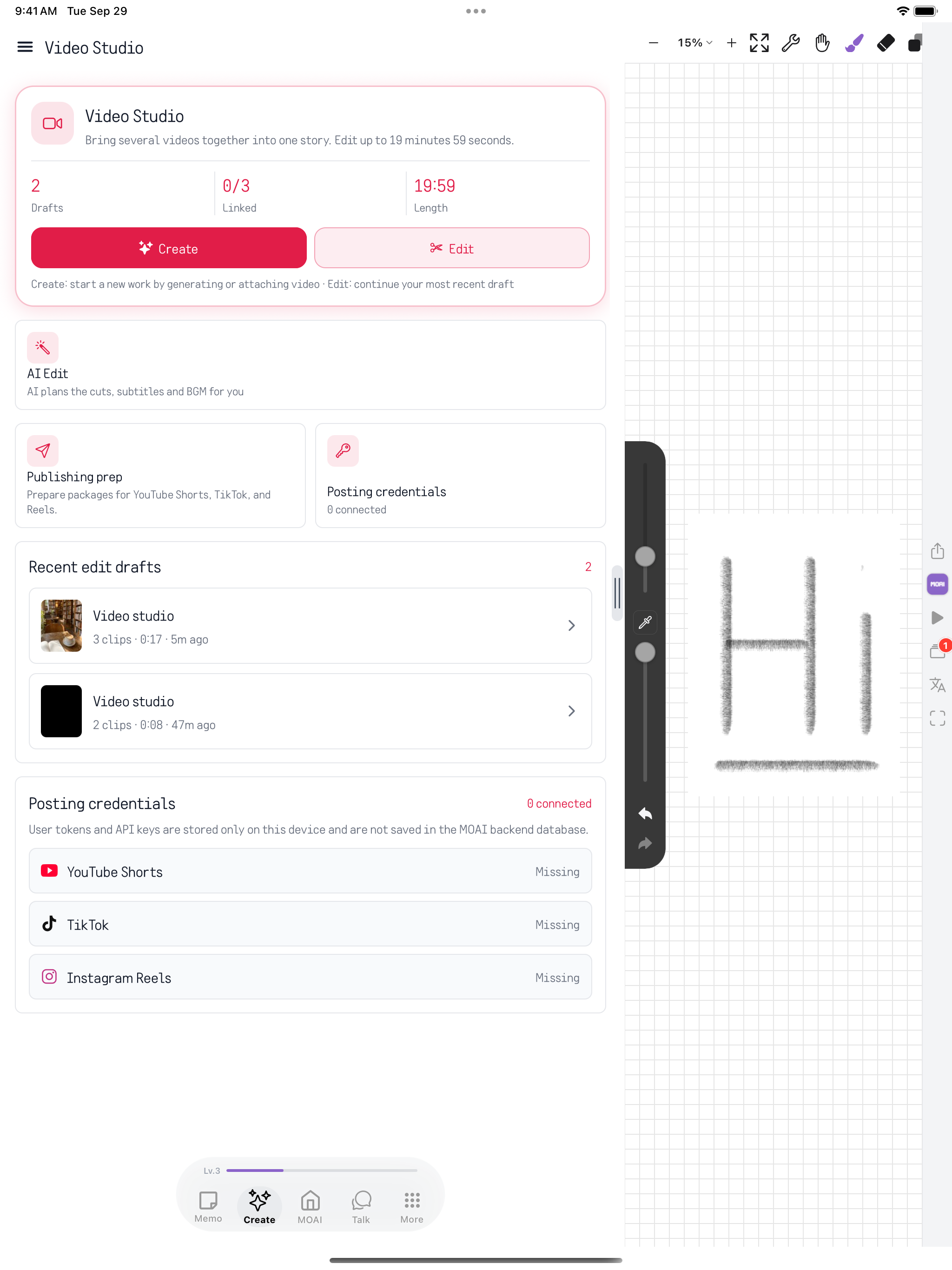
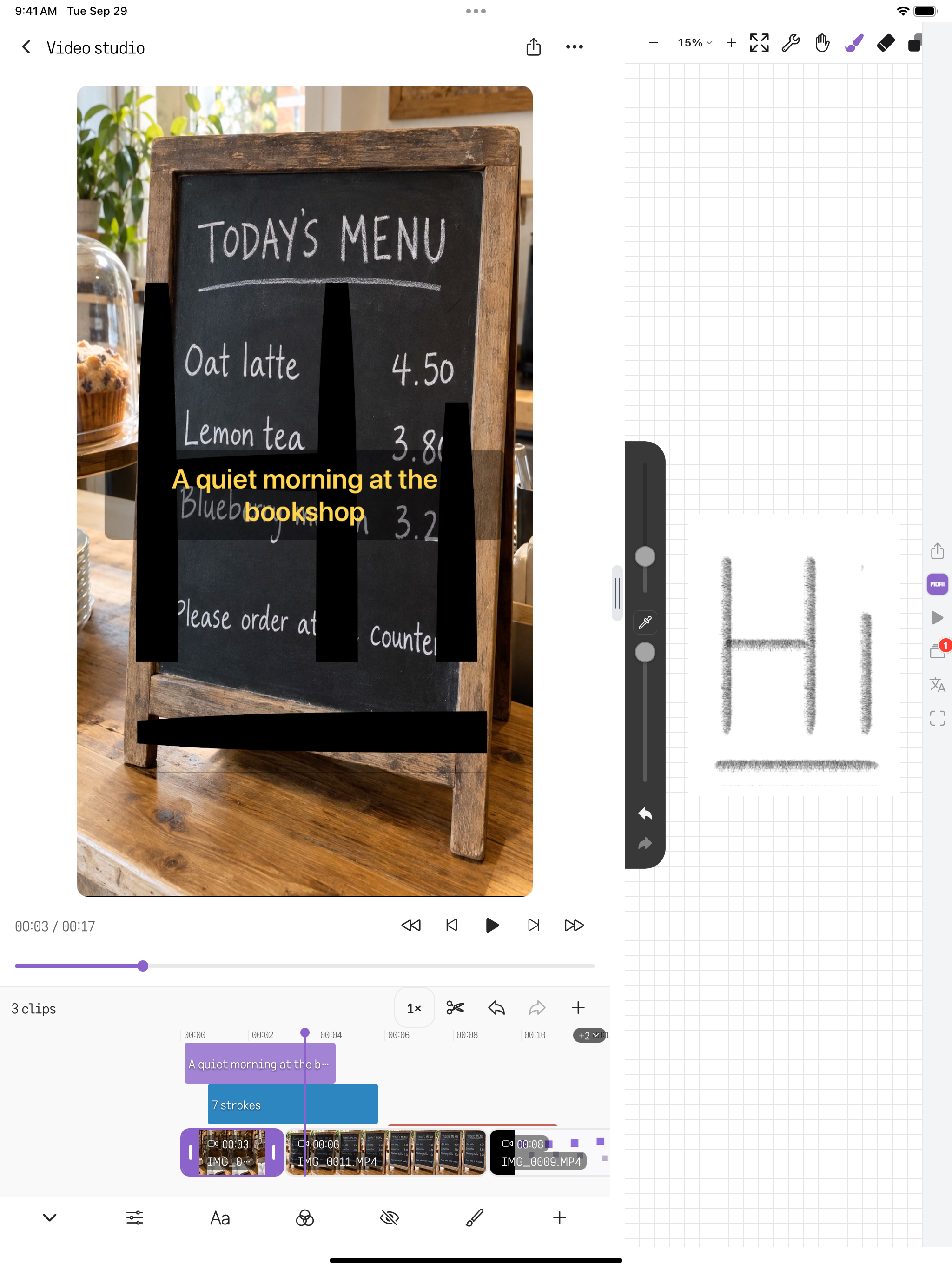
Import clips and edit them on the timeline with subtitles, music, mosaic and drawings, then export the video.

Send messages and attachments, react, edit and translate within a conversation.
Write notes, study words and play music on your computer.
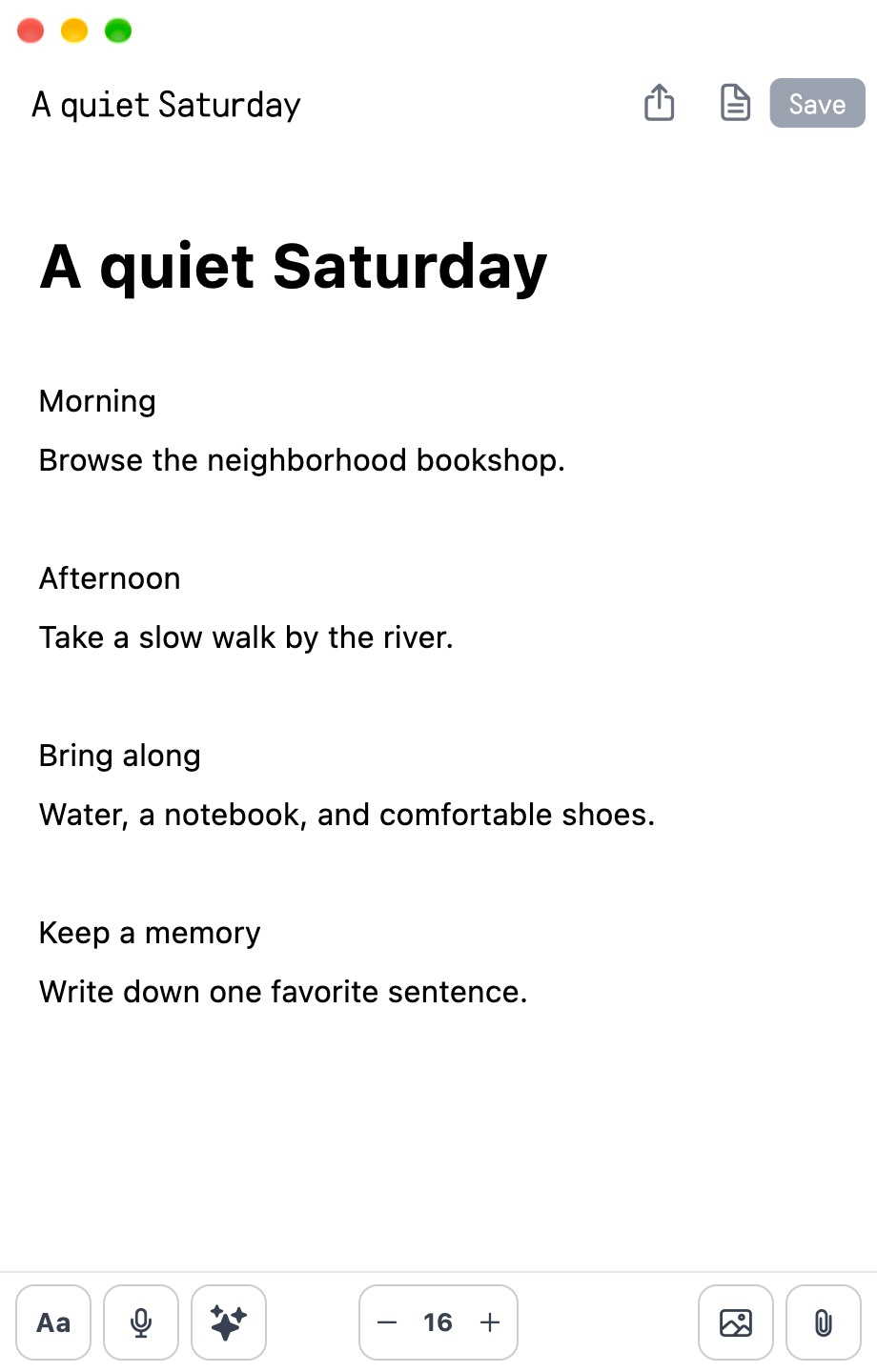
Write and edit a note, add images and attach the material you want to keep with it.
Bookmark words and practise with vocabulary quizzes.
Play music, make a playlist and return to favourites and listening history.
See the app in any of its 30 languages.
Everyone’s AI - MOAI is an all-in-one AI app for iPhone, iPad, Android, Mac and Windows. Write and organize notes with AI, record and transcribe voice memos and meetings, shoot and retouch with a beauty camera, edit videos, create images and music, translate text and live conversations, study languages, and chat and call with friends — in 30 languages.
Write quick notes, manage your schedule with the calendar, record voice memos and meetings, and let MOAI organize your notes. Explore a wide range of studio tools. Go from lyrics, sheet music, backing tracks and guide vocals to a finished song, edit videos with advanced tools, edit and generate images, draw, retouch with beauty effects, make moving images and create freely. MOAI Lens, a real-time conversation translator, Study, Music, Fortune and Love, all in one place. Get closer to people through messages, calls, channels and shared stories, and update your profile to try a language exchange with someone of the opposite sex.
Choose your platform on the download page to open its official app store.
Download MOAIThe MOAI app and this page are available in 30 languages, including English, Korean, Japanese, Spanish, French, German, Russian, Arabic, Hindi, Thai and Vietnamese. Study languages are chosen separately from the app language.